Showing posts with label .NET Compact Framework. Show all posts

Thursday, August 09, 2007

Webcast Review: Building High-Performance Applications Using the .NET Compact Framework

On August 8th, 2007, the Microsoft .NET Compact Framework team's lead software developer, Steven Pratschner, conducted an extremely informative MSDN webcast entitled "Building High-Performance Applications Using the .NET Compact Framework". For people unfamiliar with Steven's blog, performance is a topic which he has covered quite extensively there. This webcast included discussion of a wide array of topics ranging from performance comparisons with native code to the implementation of the .NET CF garbage collector.
There are many notable highlights in this 71 minute webcast including the following subjects:

  • A comparison of method calls on performance:
    • Managed Method calls are 2.3x the cost of a native call
    • Virtual Method calls are 1.5x the cost of a method instance call
    • P/Invoke Method calls are 5x the cost of a managed instance call
    • (Unfortunately though it did not discuss the performance of static methods versus instance methods nor the use of interfaces)
  • The effect of boxing on performance demonstrated through the use of a simple demo game containing a grid of blocks being rotated.
  • How to use the .NET CF Remote Performance Monitor to look at metrics including the total number of garbage collections, memory usage, and objects allocated.
  • How to use the new CLR Profiler, which will be included in version 3.5 of the .NET Compact Framework. This provided detailed information to the level of showing which methods within the demo application were causing a high percentage of object allocations.
  • Why it is better to use an indexer or custom iterator over a foreach statement
Early in the session, Steven mentions how code is just-in-time compiled or jitted, on a per method basis. How code is jitted is important when testing the performance of methods. Steven reveals an extremely useful approach. He says to run the method once so that it gets jitted. Then, call the method again this time measuring for performance. Following these steps gives the true runtime of the method as opposed to the jit time and runtime combined.

Other fascinating topics are discussed including collections, reducing application startup times and reflection. This is definitely a webcast that developers working on enterprise level line of business applications using the .NET CF should watch.

Wednesday, May 02, 2007

.NET CF Custom Control: RoundedGroupBox

The .NET Compact Framework provides an excellent abstracted interface to the Graphics Device Interface (GDI) subsystem in the same manner as the full .NET Framework. However, there are still quite a few drawing methods which are not part of the CF which if included would make the design of custom controls easier (and sometimes more fun). One of the methods missing from the Compact Framework is the RoundRect GDI function. According to MSDN, "This function draws a rectangle with rounded corners. The current pen outlines the rectangle and the current brush fills it."

In this entry, the RoundRect function is used to create a new custom control called a RoundedGroupBox. The standard GroupBox control exists on the full framework and provides a panel with a rounded outline and a title. It logically groups controls into a designated area of the screen. An image of the GroupBox from the full framework is displayed in Image 1. The Compact Framework does not contain a GroupBox control, so this custom control, RoundedGroupBox, serves as a stand-in with a little more flare.

Image 1 - GroupBox from the full .NET framework


To create the RoundedGroupBox using C# and the .NET Compact Framework, aside from the RoundRect GDI function, there are three other GDI functions which need to be P/Invoked:


  • CreateSolidBrush - This function is used to create colored brushes used to fill in the round rectangles.

  • SelectObject - This function is used to select a brush to use when drawing.

  • DeleteObject - This function deletes a drawing object and frees its associated memory.


A fourth function, GetStockObject is also contained within the source code but not used within this example. GDI contains some predefined pens, brushes and fonts. This function can retrieve any of those.


One very important point when P/Invoking these functions is that they need to be accessed at both design time and runtime. On Windows Mobile, these functions are all found in the coredll native assembly. Trying to use that assembly during design time is not going to work however, because Visual Studio will try to access a coredll.dll file on the local desktop. To work in the designer on the desktop, these functions need to be accessed in the gdi32 assembly found in the \Windows\System32 folder. A simple wrapper function has been written that checks the current environment and decides which version of the function to use -- gdi32 on the desktop and coredll on Windows Mobile. The source code for accessing these functions is listed in Code Listing 1. Image 2 shows the RoundedGroupBox control displayed in the Visual Studio designer.

Code Listing 1 - NativeMethods.cs


#region Using Directives

using System;
using System.Collections.Generic;
using System.Runtime.InteropServices;
using System.Text;

#endregion

namespace Rhinomobile.ControlLibrary
{
/// <summary>
/// Platform Invocation Methods
/// </summary>
class NativeMethods
{
#region Windows CE Methods

[DllImport("coredll", EntryPoint = "RoundRect")]
private static extern bool RoundRectCE(IntPtr hdc, int nLeftRect, int nTopRect,
int nRightRect, int nBottomRect, int nWidth, int nHeight);

[DllImport("coredll", EntryPoint = "CreateSolidBrush")]
private static extern IntPtr CreateSolidBrushCE(int crColor);

[DllImport("coredll", EntryPoint = "SelectObject")]
private static extern IntPtr SelectObjectCE(IntPtr hdc, IntPtr hgdiobj);

[DllImport("coredll", EntryPoint = "DeleteObject")]
private static extern bool DeleteObjectCE(IntPtr hObject);

[DllImport("coredll", EntryPoint = "GetStockObject")]
private static extern IntPtr GetStockObjectCE(int fnObject);

#endregion

#region Windows Methods

[DllImport("gdi32", EntryPoint = "RoundRect")]
private static extern bool RoundRectWin(IntPtr hdc, int nLeftRect, int nTopRect,
int nRightRect, int nBottomRect, int nWidth, int nHeight);

[DllImport("gdi32", EntryPoint = "CreateSolidBrush")]
private static extern IntPtr CreateSolidBrushWin(int crColor);

[DllImport("gdi32", EntryPoint = "SelectObject")]
private static extern IntPtr SelectObjectWin(IntPtr hdc, IntPtr hgdiobj);

[DllImport("gdi32", EntryPoint = "DeleteObject")]
private static extern bool DeleteObjectWin(IntPtr hObject);

[DllImport("gdi32", EntryPoint = "GetStockObject")]
private static extern IntPtr GetStockObjectWin(int fnObject);

#endregion

#region Platform Agnostic Methods

/// <summary>
/// This function draws a rectangle with rounded corners. The current pen outlines the
/// rectangle and the current brush fills it.
/// </summary>
/// <param name="hdc">Handle to the device context.</param>
/// <param name="nLeftRect">Specifies the x-coordinate of the upper left corner of
/// the rectangle.</param>
/// <param name="nTopRect">Specifies the y-coordinate of the upper left corner of
/// the rectangle.</param>
/// <param name="nRightRect">Specifies the x-coordinate of the lower right corner
/// of the rectangle.</param>
/// <param name="nBottomRect">Specifies the y-coordinate of the lower right corner
/// of the rectangle.</param>
/// <param name="nWidth">Specifies the width of the ellipse used to draw the
/// rounded corners.</param>
/// <param name="nHeight">Specifies the height of the ellipese used to draw the
/// rounded corners.</param>
/// <returns>
/// Nonzero indicates success. Zero indicates failure. To get extended
/// error information, call GetLastError.
/// </returns>
internal static bool RoundRect(IntPtr hdc, int nLeftRect, int nTopRect,
int nRightRect, int nBottomRect, int nWidth, int nHeight)
{
bool result = false;
if (Environment.OSVersion.Platform == PlatformID.WinCE)
{
result = RoundRectCE(hdc, nLeftRect, nTopRect, nRightRect,
nBottomRect, nWidth, nHeight);
}
else
{
result = RoundRectWin(hdc, nLeftRect, nTopRect, nRightRect,
nBottomRect, nWidth, nHeight);
}
return result;
}

/// <summary>
/// This function creates a logical brush that has the specified solid color.
/// </summary>
/// <param name="crColor">Specifies the color of the brush.</param>
/// <returns>
/// A handle that identifies a logical brush indicates success. NULL
/// indicates failure. To get extended error information, call GetLastError.
/// </returns>
internal static IntPtr CreateSolidBrush(int crColor)
{
IntPtr result = IntPtr.Zero;
if (Environment.OSVersion.Platform == PlatformID.WinCE)
{
result = CreateSolidBrushCE(crColor);
}
else
{
result = CreateSolidBrushWin(crColor);
}
return result;
}

/// <summary>
/// This function selects an object into a specified device context. The new object
/// replaces the previous object of the same type.
/// </summary>
/// <param name="hdc">Handle to the device context.</param>
/// <param name="hgdiobj">Handle to the object to be selected.</param>
/// <returns>
/// If the selected object is not a region, the handle of the object being
/// replaced indicates success.
/// </returns>
internal static IntPtr SelectObject(IntPtr hdc, IntPtr hgdiobj)
{
IntPtr result = IntPtr.Zero;
if (Environment.OSVersion.Platform == PlatformID.WinCE)
{
result = SelectObjectCE(hdc, hgdiobj);
}
else
{
result = SelectObjectWin(hdc, hgdiobj);
}
return result;
}

/// <summary>
/// This function deletes a logical pen, brush, font, bitmap, region, or palette,
/// freeing all system resources associated with the object. After the object is
/// deleted, the specified handle is no longer valid.
/// </summary>
/// <param name="hObject">Handle to a logical pen, brush, font, bitmap, region,
/// or palette.</param>
/// <returns>Nonzero indicates success.</returns>
internal static bool DeleteObject(IntPtr hObject)
{
bool result = false;
if (Environment.OSVersion.Platform == PlatformID.WinCE)
{
result = DeleteObjectCE(hObject);
}
else
{
result = DeleteObjectWin(hObject);
}
return result;
}

/// <summary>
/// This function retrieves a handle to one of the predefined stock pens,
/// brushes or fonts.
/// </summary>
/// <param name="fnObject">Specifies the type of stock object.</param>
/// <returns>If the function succeeds, the return value identifies the
/// logical object requested.</returns>
internal static IntPtr GetStockObject(int fnObject)
{
IntPtr result = IntPtr.Zero;
if (Environment.OSVersion.Platform == PlatformID.WinCE)
{
result = GetStockObjectCE(fnObject);
}
else
{
result = GetStockObjectWin(fnObject);
}
return result;
}

#endregion
}
}


Image 2 - RoundedGroupBox control displayed in the designer


By default, when a P/Invoke call is made inside a .NET CF custom control, the Visual Studio designer will not attempt to draw the control properly because it believes it cannot. The attribute which controls whether Visual Studio will attempt to draw the control or not is the DesktopCompatible attribute which is placed in the DesignTimeAttributes.xmta xml file. Code Listing 2 shows the DesignTimeAttributes.xmta file. Image 3 displays two versions of the control - one with the DesktopCompatible attribute set to true in the xmta file and the other without it.

Code Listing 2 - DesignTimeAttributes.xmta


<?xml version="1.0" encoding="utf-16"?>
<Classes xmlns="http://schemas.microsoft.com/VisualStudio/2004/03/SmartDevices/XMTA.xsd">
<Class Name="Rhinomobile.ControlLibrary.BorderPanel">
<DesktopCompatible>true</DesktopCompatible>
<Property Name="BorderColor">
<Category>Appearance</Category>
<Description>The color used to draw the border of the panel.</Description>
</Property>
<Property Name="BorderWidth">
<Category>Layout</Category>
<Description>The width of the panel border.</Description>
</Property>
</Class>
<Class Name="Rhinomobile.ControlLibrary.RoundedGroupBox">
<DesktopCompatible>true</DesktopCompatible>
<Property Name="OuterColor">
<Category>Appearance</Category>
<Description>The color user to fill the background of the title of the rounded group box.</Description>
</Property>
<Property Name="RoundedGroupBoxText">
<Category>Appearance</Category>
<Description>The text displayed in the title of the group box panel.</Description>
</Property>
</Class>
</Classes>


Image 3 - Two versions of RoundedGroupBox displayed - One with the DesktopCompatible attribute set to true in the DesignTimeAttributes.xmta file, the other without


The RoundedGroupBox control itself is comprised of two round rectangles drawn with different colored brushes. The top is slightly offset on the inner polygon which leaves an area for the title to be written. This control is derived from a standard .NET Compact Framework System.Windows.Forms.Panel, so out of the box it provides the logical grouping functionality inherent in a panel.

RoundedGroupBox provides two additional properties, OuterColor and RoundedGroupBoxText. OuterColor is the color used for the title area and the outline. The standard BackColor property is used for the area where controls are placed. RoundedGroupBoxText is a property which contains the text displayed in the title area.

RoundedGroupBox also overrides two inherited methods, OnPaintBackground and OnPaint. In OnPaintBackground, the background color of the parent control is used to fill the RoundedGroupBox control. Doing this fills in the gaps left by the rounded corners of the control so that seemingly the parent control is showing through. OnPaint is more complicated and a snippet of code is displayed inline below.


protected override void OnPaint(PaintEventArgs e)
{
int outerBrushColor = HelperMethods.ColorToWin32(m_outerColor);
int innerBrushColor = HelperMethods.ColorToWin32(this.BackColor);

IntPtr hdc = e.Graphics.GetHdc();
try
{
IntPtr hbrOuter = NativeMethods.CreateSolidBrush(outerBrushColor);
IntPtr hOldBrush = NativeMethods.SelectObject(hdc, hbrOuter);
NativeMethods.RoundRect(hdc, 0, 0, this.Width, this.Height, DIAMETER, DIAMETER);
IntPtr hbrInner = NativeMethods.CreateSolidBrush(innerBrushColor);
NativeMethods.SelectObject(hdc, hbrInner);
NativeMethods.RoundRect(hdc, 0, 18, this.Width, this.Height, DIAMETER, DIAMETER);
NativeMethods.SelectObject(hdc, hOldBrush);
NativeMethods.DeleteObject(hbrOuter);
NativeMethods.DeleteObject(hbrInner);
}
finally
{
e.Graphics.ReleaseHdc(hdc);
}

if (!string.IsNullOrEmpty(m_roundedGroupBoxText))
{
Font titleFont = new Font("Tahoma", 9.0F, FontStyle.Bold);
Brush titleBrush = new SolidBrush(this.BackColor);
try
{
e.Graphics.DrawString(m_roundedGroupBoxText, titleFont, titleBrush, 14.0F, 2.0F);
}
finally
{
titleFont.Dispose();
titleBrush.Dispose();
}
}

base.OnPaint(e);
}


The first two function calls are to the ColorToWin32 method. This method converts a System.Drawing.Color value into an integer used with Windows 32 functions. It is contained in the HelperMethods class. This class can be found in Code Listing 3.

Following the color conversions, a handle to the underlying GDI device context is retrieved using the GetHdc method. A solid brush of the outer color is then created using CreateSolidBrush. This brush is then selected using the SelectObject function. This is analagous to selecting a type of brush within a graphics program when drawing shapes. A handle to the previously selected brush is saved so that it can be the selected brush again when the control is finished drawing. The outer round rectangle is drawn with a call to the RoundRect function. The same steps are repeated for the inner round rectangle: creation, selection, and drawing. Both the outer and inner round rectangles are drawn using a constant value for nWidth and nHeight giving the control a circular corner. When both round rectangles have been drawn, the previously selected brush is set as the selected brush again. The two created brushes are then deleted. Finally, the handle to the device context is released. The remaining part of the OnPaint method is responsible for writing the title text in the space between the two round rectangles. The source code for RoundedGroupBox.cs is found in Code Listing 4. Image 4 shows a screenshot of a sample application which uses the RoundedGroupBox control to ask a question where a singular answer can be chosen.

Code Listing 3 - HelperMethods.cs


#region Using Directives

using System;
using System.Collections.Generic;
using System.Drawing;
using System.Text;

#endregion

namespace Rhinomobile.ControlLibrary
{
/// <summary>
/// Useful methods
/// </summary>
static class HelperMethods
{
/// <summary>
/// Converts a System.Drawing.Color value into a Windows 32 color value.
/// </summary>
/// <param name="color">System.Drawing.Color value</param>
/// <returns>Windows 32 integer representation of a color</returns>
public static int ColorToWin32(Color color)
{
return ((color.R | (color.G << 8)) | (color.B << 16));
}
}
}


Code Listing 4 - RoundedGroupBox.cs


#region Using Directives

using System;
using System.Collections.Generic;
using System.Drawing;
using System.Windows.Forms;
using System.Text;

#endregion

namespace Rhinomobile.ControlLibrary
{
/// <summary>
/// A group box panel with rounded corners and a title
/// </summary>
public class RoundedGroupBox : Panel
{
#region Constants

private const int DIAMETER = 32;

#endregion

#region Fields

private Color m_outerColor = SystemColors.ActiveCaption;
private string m_roundedGroupBoxText = string.Empty;

#endregion

#region Protected Methods

protected override void OnPaintBackground(PaintEventArgs e)
{
if (this.Parent != null)
{
SolidBrush backBrush = new SolidBrush(this.Parent.BackColor);
try
{
e.Graphics.FillRectangle(backBrush, 0, 0, this.Width, this.Height);
}
finally
{
backBrush.Dispose();
}
}
}

protected override void OnPaint(PaintEventArgs e)
{
int outerBrushColor = HelperMethods.ColorToWin32(m_outerColor);
int innerBrushColor = HelperMethods.ColorToWin32(this.BackColor);

IntPtr hdc = e.Graphics.GetHdc();
try
{
IntPtr hbrOuter = NativeMethods.CreateSolidBrush(outerBrushColor);
IntPtr hOldBrush = NativeMethods.SelectObject(hdc, hbrOuter);
NativeMethods.RoundRect(hdc, 0, 0, this.Width, this.Height, DIAMETER, DIAMETER);
IntPtr hbrInner = NativeMethods.CreateSolidBrush(innerBrushColor);
NativeMethods.SelectObject(hdc, hbrInner);
NativeMethods.RoundRect(hdc, 0, 18, this.Width, this.Height, DIAMETER, DIAMETER);
NativeMethods.SelectObject(hdc, hOldBrush);
NativeMethods.DeleteObject(hbrOuter);
NativeMethods.DeleteObject(hbrInner);
}
finally
{
e.Graphics.ReleaseHdc(hdc);
}

if (!string.IsNullOrEmpty(m_roundedGroupBoxText))
{
Font titleFont = new Font("Tahoma", 9.0F, FontStyle.Bold);
Brush titleBrush = new SolidBrush(this.BackColor);
try
{
e.Graphics.DrawString(m_roundedGroupBoxText, titleFont, titleBrush, 14.0F, 2.0F);
}
finally
{
titleFont.Dispose();
titleBrush.Dispose();
}
}

base.OnPaint(e);
}

#endregion

#region Properties

/// <summary>
/// The color user to fill the background of the title of the rounded group box.
/// </summary>
public Color OuterColor
{
get
{
return m_outerColor;
}
set
{
m_outerColor = value;
this.Invalidate();
}
}

/// <summary>
/// The text displayed in the title of the group box panel.
/// </summary>
public string RoundedGroupBoxText
{
get
{
return this.m_roundedGroupBoxText;
}
set
{
m_roundedGroupBoxText = value;
this.Invalidate();
}
}

#endregion
}
}


Image 4 - RoundedGroupBox example application

Friday, April 20, 2007

.NET CF Custom Control: BorderPanel

Creating custom controls using the .NET Compact Framework 2.0 and Visual Studio 2005 can be a tough chore at times, but sometimes it can also be very rewarding and time saving. This entry details how to create a .NET CF BorderPanel custom control. A BorderPanel is a type of Panel which contains a border of a specified color and width. This control is used in the Run Application at Time (and Time Change) post to separate different sections of the demonstration application into logical groupings.

Inside the Rhinomobile.ControlLibrary sample project, which is of type ControlLibrary, there are three files to note: BorderPanel.bmp, BorderPanel.cs, and DesignTimeAttributes.xmta. BorderPanel.bmp is the graphic which represents the BorderPanel when it is placed in the Toolbox. BorderPanel.cs is the source code for the BorderPanel custom control. DesignTimeAttributes.xmta is an xml file which contains information used by Visual Studio when using the control through the designer. The project layout including these three files is displayed in Image 1.

Image 1 - Solution Explorer Showing BorderPanel.bmp, BorderPanel.cs, and DesignTimeAttributes.xmta Files


BorderPanel.bmp is a 16 x 16 bitmap added to the project with the same base name as the custom control. The Build Action for this file should be set to "Embedded Resource". The BorderPanel.bmp file used in this project is displayed in Image 2.

Image 2 - BorderPanel.bmp Graphic


BorderPanel is a .NET Compact Framework 2.0 Custom Control which behaves exactly like a Panel yet has a border of a specified color and width. BorderPanel inherits from the standard System.Windows.Forms.Panel class. By doing so, BorderPanel automatically acts in the same fashion as a Panel. The only difference with a BorderPanel is how it is drawn.

Two fields are added to the BorderPanel class, one containing information about the border color and the other about the border width. Corresponding public properties are also added to the class. These are named appropriately enough BorderColor and BorderWidth. A call to Invalidate() is also added to the mutator (set) of the public properties. The Invalidate method with no parameters causes the entire control to be redrawn on the next painting. Changing the border color or changing the border width would both cause the visual look of the control to change and is why Invalidate is called.

The OnPaint method inherited from the Panel class is overridden to draw the custom control. A new Pen object is instantiated, used to draw the border, and then disposed. It is of extreme importance to dispose of GDI objects as soon as they are finished being used on a mobile device as they are a major source of memory issues. The width of the Pen is set to the BorderWidth property and the color is set to BorderColor.

Calculating where to draw the border though is an interesting issue. The drawing is covered in these two lines:


int halfWidth = m_borderWidth / 2;
e.Graphics.DrawRectangle(borderPen, halfWidth, halfWidth,
this.Width - m_borderWidth, this.Height - m_borderWidth);


The halfWidth variable is used due to the alignment of the Pen object. Pen.Alignment is not a property that is supported on the .NET Compact Framework. The alignment of the Pen is therefore set to center, meaning that if the width of the pen is 10 pixels, 5 are going to be drawn on one side of the pen and 5 on the other. For this reason, half the width (halfWidth) of the Pen is calculated and used as the starting x,y coordinate for the drawing of the border. This ensures that the entire border is drawn on the viewable area. The third and fourth parameters to the DrawRectangle method are a width and height of the rectangle which is the reason the entire width and entire height of the border are subtracted from these values respectively.

The final item in OnPaint is a call to base.OnPaint(e) to ensure that other items are properly drawn. The source code for the BorderPanel is shown in Code Listing 1.

Code Listing 1 - BorderPanel.cs


#region Using Directives

using System;
using System.Collections.Generic;
using System.ComponentModel;
using System.Drawing;
using System.Data;
using System.Text;
using System.Windows.Forms;

#endregion

namespace Rhinomobile.ControlLibrary
{
/// <summary>
/// A Panel with a colored sizable border
/// </summary>
public class BorderPanel : Panel
{
#region Fields

private Color m_borderColor = SystemColors.Control;
private int m_borderWidth = 4;

#endregion

#region Constructor

/// <summary>
/// BorderPanel Constructor
/// </summary>
public BorderPanel() : base()
{
}

#endregion

#region Protected Methods

protected override void OnPaint(PaintEventArgs e)
{
if ((m_borderWidth > 0) && (m_borderWidth < (this.Width / 2)))
{
Pen borderPen = new Pen(m_borderColor, (float)m_borderWidth);
try
{
int halfWidth = m_borderWidth / 2;
e.Graphics.DrawRectangle(borderPen, halfWidth, halfWidth,
this.Width - m_borderWidth, this.Height - m_borderWidth);
}
finally
{
borderPen.Dispose();
}
}
base.OnPaint(e);
}

#endregion

#region Properties

/// <summary>
/// Color used for drawing border on panel
/// </summary>
public Color BorderColor
{
get
{
return m_borderColor;
}
set
{
m_borderColor = value;
this.Invalidate();
}
}

/// <summary>
/// Width of border on panel
/// </summary>
public int BorderWidth
{
get
{
return m_borderWidth;
}
set
{
m_borderWidth = value;
this.Invalidate();
}
}

#endregion
}
}


DesignTimeAttributes.xmta is an xml file which contains information about classes, properties, methods, and events used by Visual Studio at design time for controls. The xmta file for the BorderPanel custom control, demonstrates how to add descriptions for added properties as well as placing the properties within the proper categories in the Properties Window.

Working with the DesignTimeAttributes.xmta file can be one of the flakiest and time consuming tasks when working with the .NET Compact Framework. The one for this control has been simplified to only show the simplest two elements. The DesignTimeAttributes.xmta file can be found in Code Listing 2.

Code Listing 2 - DesignTimeAttributes.xmta


<?xml version="1.0" encoding="utf-16"?>
<Classes xmlns="http://schemas.microsoft.com/VisualStudio/2004/03/SmartDevices/XMTA.xsd">
<Class Name="Rhinomobile.ControlLibrary.BorderPanel">
<Property Name="BorderColor">
<Category>Appearance</Category>
<Description>The color used to draw the border of the panel.</Description>
</Property>
<Property Name="BorderWidth">
<Category>Layout</Category>
<Description>The width of the panel border.</Description>
</Property>
</Class>
</Classes>


At this point the project can be compiled and the control library built. The following images indicate how to go about adding the BorderPanel to the Toolbox within Visual Studio.

Image 3 - Toolbox Before Adding BorderPanel


Right click on the Toolbox and select "Choose Items..."

Image 4 - Choose Toolbox Items Dialog Before Adding BorderPanel


Click the "Browse" button on the Choose Toolbox Items Dialog.

Image 5 - Choose Toolbox Items Browse Dialog


Navigate to the location of the control library assembly and select it.

Image 6 - Choose Toolbox Items After Adding BorderPanel


Notice the controls in the assembly have been added to the list of components and checked. Click the "Ok" button on the dialog and the controls should be added to the Toolbox.

Image 7 - Toolbox After Adding BorderPanel


Image 8 - Form1.cs Design After Dragging Over a BorderPanel from the Toolbox


Image 9 - Properties Window Showing the BorderColor and BorderWidth Properties

Friday, March 30, 2007

Run Application at Time (and Time Change)

MSDN describes CeRunAppAtTime as a function which "prompts the system to start running a specified application at a specified time." This function can be extremely useful for performing scheduled tasks such as snapshots of running processes, the retrieval of device memory statistics, routine checks on security settings, or automatic device synchronization. Conversely, it can also be used to rescind the scheduling of these activities.

The CeRunAppAtTime function takes two parameters: TCHAR* pwszAppName, and SYSTEMTIME* lpTime. The first parameter, pwszAppName, is the name of the application to be run (e.g. \windows\cgacutil.exe). The type of the parameter is a pointer to a TCHAR. One might ask, "What's a TCHAR?" Well, according to MSDN, a TCHAR is a "Win32 character string that can be used to describe ANSI, DBCS, or Unicode strings. [...] For Unicode platforms, TCHAR is defined as synonymous with the WCHAR type." With Windows CE being a Unicode platform, this makes a TCHAR a WCHAR (wide character). Further demonstrating this is that the name of the actual first parameter - pwszAppName, translates into Pointer to a Wide String terminated with a Zero (null character) when broken down. Because the parameter is an input parameter, a standard C# string can be passed in as an equivalent in a P/Invoke function call.

The second parameter, lpTime, is the time at which the specified application should be run. A simple C# type though won't suffice for lpTime (Long Pointer to a time variable). This parameter requires a little bit more work. SYSTEMTIME is a structure composed of WORD representations of 8 items: year, month, day, day of week, hours, minutes, seconds, and milliseconds. A WORD is equivalent to a C# short, i.e. 2 bytes, putting the size of the structure at 16 bytes. A C# equivalent has been provided in Code Listing 1.

Additionally, it is the second parameter which also controls whether CeRunAppAtTime rescinds the scheduling of an application. This is done by passing in a null parameter for lpTime. One note on cancelling an application though is that CeRunAppAtTime will return false if the application specified was not already currently specified, so do not interpret this as the function only failing to remove a scheduled instance.

In the example below, because SYSTEMTIME (represented in C# as SystemTime) is a structure, two P/Invoke calls have been defined (see NativeTimeMethods.cs). The one which takes an array of bytes as the lpTime parameter is the one which can have a null value sent into it (see TimeUtilities.cs). The other one should be used for standard scheduling of applications.

An interesting point requiring further discussion is what happens when the time on the device is changed. The device time could be changed by the user or by a time negotiation on synchronization, or via an NTP (Network Time Protocol) server.

Images 1 through 5 show what happens when the current time on a device (March 28th, 2007) is changed to a future time (March 30th, 2007) to the point where applications would be scheduled to run in the past (March 29th, 2007). Windows CE ends up running those scheduled applications immediately. This is demonstrated within the screenshots of the sample application.

Image 1 - First "Set Date" button tapped. Date changed to March 28th, 2007


Image 2 - Right soft key button tapped. Application soft key menu displayed


Image 3 - Run App menu option selected. Application is run now.


Image 4 - "Set App" button tapped. Application set to run on March 29th, 2007


Image 5 - Second "Set Date" button tapped. Date changed to March 30th, 2007


With the time now changed to March 30th, 2007, the application which was scheduled to run on March 29th, 2007 is now run immediately.

Code Listing 1 - SystemTime.cs


#region Using Directives

using System;
using System.Collections.Generic;
using System.Runtime.InteropServices;
using System.Text;

#endregion

namespace Rhinomobile.ClassLibrary
{
/// <summary>
/// This structure represents a date and time using individual members for the month,
/// day, year, weekday, hour, minute, second, and millisecond.
/// </summary>
[StructLayout(LayoutKind.Sequential)]
public struct SystemTime
{
#region Fields

private short m_year;
private short m_month;
private short m_dayOfWeek;
private short m_day;
private short m_hour;
private short m_minute;
private short m_second;
private short m_milliseconds;

#endregion

#region Constructors

public SystemTime(DateTime value)
: this()
{
ConvertFromDateTime(value);
}

#endregion

#region Properties

/// <summary>
/// Specifies the current year
/// </summary>
public short Year
{
get { return m_year; }
}

/// <summary>
/// Specifies the current month
/// January = 1 ... December = 12
/// </summary>
public short Month
{
get { return m_month; }
}

/// <summary>
/// Specifies the current day of the week
/// Sunday = 0 ... Saturday = 6
/// </summary>
public short DayOfWeek
{
get { return m_dayOfWeek; }
}

/// <summary>
/// Specifies the current day of the month
/// </summary>
public short Day
{
get { return m_day; }
}

/// <summary>
/// Specifies the current hour
/// </summary>
public short Hour
{
get { return m_hour; }
}

/// <summary>
/// Specifies the current minute
/// </summary>
public short Minute
{
get { return m_minute; }
}

/// <summary>
/// Specifies the current second
/// </summary>
public short Second
{
get { return m_minute; }
}

/// <summary>
/// Specifies the current millisecond
/// </summary>
public short Milliseconds
{
get { return m_milliseconds; }
}

public DateTime DateTime
{
get { return ConvertToDateTime(); }
set { ConvertFromDateTime(value); }
}

/// <summary>
/// Gets the day of the year represented by this instance.
/// </summary>
public int DayOfYear
{
get { return DateTime.DayOfYear; }
}

/// <summary>
/// Gets the number of ticks that represent the date and time of this instance.
/// </summary>
public long Ticks
{
get { return DateTime.Ticks; }
}

/// <summary>
/// Gets the time of day for this instance.
/// </summary>
public TimeSpan TimeOfDay
{
get { return DateTime.TimeOfDay; }
}

#endregion

#region Private Methods

private void ConvertFromDateTime(DateTime value)
{
m_year = (short)value.Year;
m_month = (short)value.Month;
m_dayOfWeek = (short)value.DayOfWeek;
m_day = (short)value.Day;
m_hour = (short)value.Hour;
m_minute = (short)value.Minute;
m_second = (short)value.Second;
m_milliseconds = (short)value.Millisecond;
}

private DateTime ConvertToDateTime()
{
return new DateTime(m_year, m_month, m_day, m_hour, m_minute, m_second);
}

#endregion
}
}


Code Listing 2 - NativeTimeMethods.cs


#region Using Directives

using System;
using System.Collections.Generic;
using System.Runtime.InteropServices;
using System.Text;

#endregion

namespace Rhinomobile.ClassLibrary
{
/// <summary>
/// P/Invoked time related methods.
/// </summary>
static class NativeTimeMethods
{
#region Internal Static Methods

/// <summary>
/// This function sets the current local time and date.
/// </summary>
/// <param name="lpSystemTime">A pointer to a SystemTime structure that contains
/// the new local date and time. The DayOfWeek member of the SystemTime structure
/// is ignored.</param>
/// <returns>Nonzero indicates success. Zero indicates failure.</returns>
[DllImport("coredll")]
internal static extern bool SetLocalTime(ref SystemTime lpSystemTime);

/// <summary>
/// This function prompts the system to start running a specified application at
/// a specified time.
/// </summary>
/// <param name="pwszAppName">Pointer to a null-terminated string that specifies
/// the name of the application to be run.</param>
/// <param name="lpTime">Long pointer to a SystemTime structure that specifies
/// the time when the given application is to be run. If this parameter is NULL,
/// the existing run request is deleted and no new request is entered. The
/// deleted run request must have been initiated by a call to CeRunAppAtTime.</param>
/// <returns>TRUE indicates success. FALSE indicates failure.</returns>
[DllImport("coredll")]
internal static extern bool CeRunAppAtTime(string pwszAppName, ref SystemTime lpTime);

/// <summary>
/// This function prompts the system to start running a specified application at
/// a specified time.
/// </summary>
/// <param name="pwszAppName">Pointer to a null-terminated string that specifies
/// the name of the application to be run.</param>
/// <param name="lpTime">Long pointer to a SystemTime structure that specifies
/// the time when the given application is to be run. If this parameter is NULL,
/// the existing run request is deleted and no new request is entered. The
/// deleted run request must have been initiated by a call to CeRunAppAtTime.</param>
/// <returns>TRUE indicates success. FALSE indicates failure.</returns>
[DllImport("coredll")]
internal static extern bool CeRunAppAtTime(string pwszAppName, byte[] lpTime);

#endregion
}
}


Code Listing 3 - TimeException.cs


#region Using Directives

using System;
using System.Collections.Generic;
using System.Text;

#endregion

namespace Rhinomobile.ClassLibrary
{
/// <summary>
/// Represents errors that occur during time methods
/// </summary>
public class TimeException : Exception
{
#region Constructors

/// <summary>
/// Initializes a new instance of the TimeException class.
/// </summary>
public TimeException()
: base()
{
}

/// <summary>
/// Initializes a new instance of the TimeException class with a specified error message.
/// </summary>
/// <param name="message">The message that describes the error.</param>
public TimeException(string message)
: base(message)
{
}

/// <summary>
/// Initializes a new instance of the TimeException class with a specified error
/// message and a reference to the inner exception that is the cause of the exception.
/// </summary>
/// <param name="message">The message that describes the error.</param>
/// <param name="innerException">The exception that is
/// the cause of the current exception.</param>
public TimeException(string message, Exception innerException)
: base(message, innerException)
{
}

#endregion
}
}


Code Listing 4 - TimeUtilities.cs


#region Using Directives

using System;
using System.Collections.Generic;
using System.Runtime.InteropServices;
using System.Text;

#endregion

namespace Rhinomobile.ClassLibrary
{
/// <summary>
/// Methods for performing time based functions
/// </summary>
public static class TimeUtilities
{
#region Static Public Methods

/// <summary>
/// This function sets the current local date and time.
/// </summary>
/// <param name="value">The local date and time to set on the device.</param>
/// <returns>True if date and time are successfully set</returns>
public static bool SetLocalDeviceTime(DateTime value)
{
SystemTime systemTime = new SystemTime(value);
bool result = NativeTimeMethods.SetLocalTime(ref systemTime);
if (!result)
{
int errorCode = Marshal.GetLastWin32Error();
throw new TimeException(StandardConstants.ERROR_CODE + errorCode.ToString());
}
return result;
}

/// <summary>
/// This function prompts the system to start running a specified application
/// at a specified time.
/// </summary>
/// <param name="application">The name of the application to be run</param>
/// <param name="value">The date and time when the given application is to be run</param>
/// <returns>True if the application is properly scheduled</returns>
public static bool RunApplication(string application, DateTime value)
{
SystemTime systemTime = new SystemTime(value);
bool result = NativeTimeMethods.CeRunAppAtTime(application, ref systemTime);
if (!result)
{
int errorCode = Marshal.GetLastWin32Error();
throw new TimeException(StandardConstants.ERROR_CODE + errorCode.ToString());
}
return result;
}

/// <summary>
/// This method deletes an existing run application request
/// </summary>
/// <param name="application">Application which has been requested to run</param>
/// <returns>True if application is found and request is removed</returns>
public static bool CancelRunApplication(string application)
{
return NativeTimeMethods.CeRunAppAtTime(application, null);
}

#endregion
}
}

Wednesday, March 07, 2007

Oops, Activator.CreateInstance with a Singleton

The Singleton pattern is one of the most widely used design patterns. The Singleton pattern ensures that exactly one and only one instance of a class is instantiated at any given time. It can also be somewhat confusing because it seems that there are multiple ways of implementing the pattern. In the article "Implementing Singleton in C#", MSDN recommends a slightly different approach for implementation than the Design Patterns classic in order to take advantage of C#'s features.

The Activator class is a useful .NET class for creating types of objects as well as obtaining references to remote objects. On the .NET Compact Framework side, the method which stands out prominently is the CreateInstance method. The .NET Compact Framework supports two overloads of the CreateInstance method. Both methods take a type. One takes a type as a parameter and returns an object. The other takes a type as a generic parameter and returns an object of that specific type.

As part of my current project, there is a navigation component responsible for returning a user to where he or she left off within the application. At the lowest levels, this component is calling Activator.CreateInstance(Type) where Type is a type of form. Everything was working fine until yesterday, when the application would repeatedly blow up anytime it was started. The issue was traced down all the way to the Activator.CreateInstance(Type) method throwing a MissingMethodException.

At first, I could not understand why a MissingMethodException was being thrown. A group of us theorized that maybe it was due to this particular form being in an assembly outside of the executing assembly. I was able to collapse the two assemblies together by adding all the files in the referenced assembly as links to the executing assembly. That did not fix the issue. The MissingMethodException was still occurring.

I decided to step back and verify what I thought was true. I then looked up the particular CreateInstance method on MSDN. It was there that I realized exactly what was happening and why a MissingMethodException was being thrown. Next to MissingMethodException was the explanation of "No matching public constructor was found". At this point it was obvious what was the cause of the issue. The form type being passed to CreateInstance had no public constructor due to the fact that there should only ever be one object of that form instantiated (because it interacts with a native application's window handles). CreateInstance was failing because it had no idea how to create an instance of that type of form.

This is just one of those times where the answer is blatantly obvious once found.

Thursday, February 22, 2007

Mobile Spy

Many Windows and Windows Mobile developers have at one time used the Microsoft Spy++ or the Microsoft CE Remote Spy tools. The Microsoft Spy++ tool allows a developer to view properties of selected windows, threads, processes, or messages using a graphical tree. Remote Spy displays a list of the windows that are open on a particular device that is connected. In addition to the list of windows, Remote Spy also provides the capability to view properties of a window such as the class, style, extended style, window procedure address, window positioning, and client area window positioning as well as the messages within the message queue for a selected window.

Image 1 - Microsoft CE Remote Spy


Remote Spy is an excellent application which is extremely useful for any mobile developer. What happens though if an individual wants to see the listing of top-level windows currently running on a device and does not have the ability to connect the device to another machine where Remote Spy can be run? Here's a simple application that performs that functionality.
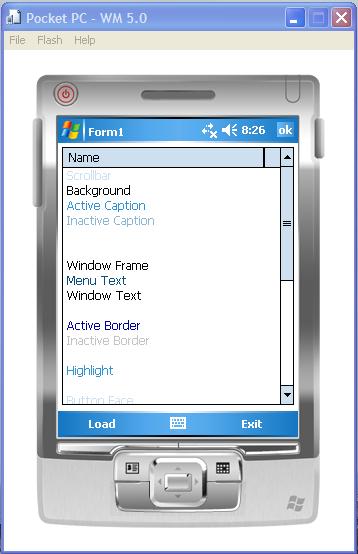
Image 2 - Mobile Spy


This application (which has been named Mobile Spy just to differentiate) shows a listing of all the top level windows running on a device at a particular moment in time. Along side the window handle of the top-level window, Mobile Spy also displays the Window Text, and the Class Name of the class to which a window belongs.

This application uses three P/Invoked methods to retrieve the window handles, the window text, and the window class names:


  • GetWindow - This function retrieves the handle to a window that has the specified relationship to the specified window.

  • GetWindowText - This function copies the text of the specified windows title bar—if it has one—into a buffer. If the specified window is a control, the text of the control is copied.

  • GetClassName - This function retrieves the name of the class to which the specified window belongs.


(Source for all above descriptions comes directly from MSDN)

The application contains a simple button and a simple list view with three columns. The "Refresh" button loads the windows in at a specific point in time. Here is code of the method associated with the click event of the "Refresh" button as well as an associated explanation:

lvWindows.BeginUpdate();
lvWindows.Items.Clear();
IntPtr window = GetWindow(this.Handle, GW_HWNDFIRST);
StringBuilder className = new StringBuilder(MAX_LENGTH);
StringBuilder windowText = new StringBuilder(MAX_LENGTH);
while (window != IntPtr.Zero)
{
int classNameCount = GetClassName(window, className, MAX_LENGTH);
int windowTextCount = GetWindowText(window, windowText, MAX_LENGTH);
string windowTextDisplay = NO_NAME;
if (windowTextCount > 0)
{
windowTextDisplay = windowText.ToString();
}
string hexWindow = String.Format("{0:X2}", window.ToInt32());
ListViewItem item = new ListViewItem(new string[] { hexWindow,
windowTextDisplay, className.ToString() });
lvWindows.Items.Add(item);
window = GetWindow(window, GW_HWNDNEXT);
}
lvWindows.EndUpdate();


The method begins with a call to lvWindows.BeginUpdate() and lvWindows.Items.Clear(). lvWindows is the name of the ListView where the information is displayed. Calling BeginUpdate prevents the control from redrawing until EndUpdate is called. The next call is made to clear the items from the list view. Be cognizant of the difference between calling lvWindows.Clear() and lvWindows.Items.Clear().

The next line is where it starts to get interesting with a call to GetWindow using the window handle of the Mobile Spy application and GW_HWNDFIRST (defined as 0). Using the GW_HWNDFIRST constant retrieves the handle of the window highest in the Z-order. Because GetWindow is passed a top-level window, it retrieves the topmost window in the Z-order.

The application then sets up a while loop and iterates as long as the returned window handle is not zero. If the window handle is not zero, the application retrieves the Class Name and the WindowText using a StringBuilder for each call respectively. The return value of both the GetClassName and GetWindowText functions are the count of characters copied into the StringBuilder passed in. If the window text returned is a length of zero, "<No name>" is used for display purposes (just as in Remote Spy).

A list view item is setup using the window handle, the window text, and the class name. The window handle is slightly modified to be displayed in its hexadecimal notation (just as in Remote Spy). The window text is displayed as explained above and the class name is displayed as returned by the GetClassName function. The list view item is added to the list view.

When the application is done processing for a particular window handle, it attempts to retrieve the next window handle. The next window handle within the Z-order is retrieved via a call to GetWindow using the current window handle and GW_HWNDNEXT (defined as 2). GW_HWNDNEXT retrieves the window below the specified window in the Z-order. If this window handle retrieved is zero, the loop will exit on the next iteration. If this window handle is non-zero, the inner section of the loop will retrieve the window text and the class name and add the information to the list view.
Finally the list view is allowed to resume drawing because of the EndUpdate() method call.

Saturday, December 02, 2006

Quick Hitter: Blank Form

What a difference a function call makes sometimes, right?

Ever start a program, go to a specific form and all the controls that were placed on the form at design time are missing? Well, some way some how, the InitializeComponent method has probably been removed from the form's constructor. The InitializeComponent method is a private void method which is placed inside the "Windows Form Designer generated code" region by Visual Studio. The attached comment even states that it is a "Required method for Designer support - do not modify the contents of this method with the code editor." This method sets all the properties of the form, initializes every control and subsequently adds each one to its parent control. Sometimes people think this is just magic that the controls get added to the form, but it's the InitializeComponent method which is doing all of the heavy lifting. So, if the controls are missing, check to verify that InitializeComponent is being called in the form's constructor.

Sunday, November 26, 2006

Performance vs. Readability

My pal Rabi recently analyzed Steve McConnell's updated classic Code Complete from a mobile perspective. Personally, I am a huge fan of McConnell's work and credit his books and reading suggestions with tremendously improving my own professional development. However, as Rabi points out, not all suggestions work in all situations.

Among many great points Rabi makes, these two stick out for me:


  1. "So the Compact Framework will pitch code on a per method basis to free memory unlike the full framework."

  2. "Don't have methods just to have more readable code - more code in a method is better"


So how can we as managed (sometimes) mobile developers fight the trade-off of performance vs. readability? Currently, I don't have a good answer. What I do have, however, is a suggestion.

Bring the inline function specifier from C++ to the .NET Compact Framework. MSDN defines inline and __inline as function specifiers that "instruct the compiler to insert a copy of the function body into each place the function is called."

Having the ability to use inline functions would mitigate Rabi's points above. Because code is pitched on a per method basis, the inline code would not be pitched being that the inline code is part of the actual method where it's being used. Additionally, the readability gains from having discrete methods instead of excessively long functions would be there as well.

Another additional benefit would be much easier unit testing. It would be much simpler to unit test these functions by having something like the following:

#if UnitTesting
public int CalculateReturnValue(int param1, int param2, int param3)
#else
private inline int CalculateReturnValue(int param1, int param2, int param3)
#endif
... Continue method definition

Therefore, from a testing and readability standpoint the benefit would be had with these methods looking and acting like methods, and from a performance standpoint the benefit would be had with these methods acting like a part of other methods.

System Colors (Part 1)

While putting together what hopefully will be a future post, I came across a situation where I needed to know what the red, green, and blue values were for various system colors. On a Windows Mobile device, those values are stored in the Registry. In fact, when a user changes the Today theme via the Today Settings applet, behind the scenes that specific registry value is being changed.

All the information in the following paragraph comes from this entry on MSDN.

System Colors are stored in the SysColor registry value in the HKEY_LOCAL_MACHINE\System\GWE key. GWE is the Graphics, Windows, and Events subsystem. There are 29 different colors which are stored in a blob in the SysColor key. These values control items such as caption background and text colors, button colors, and window and menu colors.

Below is a C# class which allows easy retrieval and access to those System Colors. Part 2 will extend the class to save new values to the System Colors.

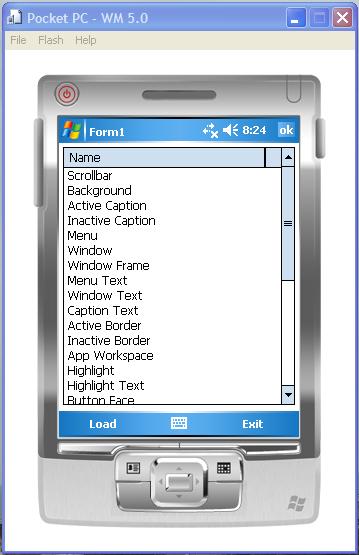
These are images of a simple application used to retrieve the system colors and set the foreground color of list view items to the corresponding colors.

Image 1 - Before Retrieving System Colors


Image 2 - After Retrieving System Colors


Image 3 - After Changing to Guava Bubbles Today Theme and Retrieving System Colors


#region Using Directives

using System;
using System.Collections.Generic;
using System.Drawing;
using System.IO;
using System.Security;
using System.Text;
using Microsoft.Win32;

#endregion

namespace SystemColors
{
public static class SystemColors
{

#region MSDN Information

// Taken from "Customizing System Colors" (http://msdn2.microsoft.com/en-us/library/ms906614.aspx)

//0 COLOR_SCROLLBAR Color of the gray area of a scroll bar.
//1 COLOR_BACKGROUND Background color of the desktop window.
//2 COLOR_ACTIVECAPTION Color of the title bar of an active window.
//3 COLOR_INACTIVECAPTION Color of the title bar of an inactive window.
//4 COLOR_MENU Background color of a menu.
//5 COLOR_WINDOW Background color of a window.
//6 COLOR_WINDOWFRAME Color of a window frame.
//7 COLOR_MENUTEXT Color of the text in a menu.
//8 COLOR_WINDOWTEXT Color of the text in a window.
//9 COLOR_CAPTIONTEXT Color of the text in a title bar and of the size box and scroll bar arrow box.
//10 COLOR_ACTIVEBORDER Color of the border of an active window.
//11 COLOR_INACTIVEBORDER Color of the border of an inactive window.
//12 COLOR_APPWORKSPACE Background color of multiple document interface (MDI) applications.
//13 COLOR_HIGHLIGHT Color of an item selected in a control.
//14 COLOR_HIGHLIGHTTEXT Color of the text of an item selected in a control.
//15 COLOR_BTNFACE Color of the face of a button.
//16 COLOR_BTNSHADOW Shadow color of buttons for edges that face away from the light source.
//17 COLOR_GRAYTEXT Color of shaded text. This color is set to 0 if the current display driver does not support a solid gray color.
//18 COLOR_BTNTEXT Color of the text for push buttons.
//19 COLOR_INACTIVECAPTIONTEXT Color of the text in the title bar of an inactive window.
//20 COLOR_BTNHIGHLIGHT Highlight color of buttons for edges that face the light source.
//21 COLOR_3DDKSHADOW Color of the dark shadow for three-dimensional display elements.
//22 COLOR_3DLIGHT Highlight color of three-dimensional display elements for edges that face the light source.
//23 COLOR_INFOTEXT Color of the text for ToolTip controls.
//24 COLOR_INFOBK Background color for ToolTip controls.
//25 COLOR_STATIC Background color for static controls and dialog boxes. Supported in Windows CE 2.0 and later.
//26 COLOR_STATICTEXT Color of the text for static controls. Supported in Windows CE 2.0 and later.
//27 COLOR_GRADIENTACTIVECAPTION Color of the title bar of an active window that is filled with a color gradient.
//28 COLOR_GRADIENTINACTIVECAPTION Color of the title bar of an inactive window that is filled with a color gradient.

#endregion

#region Constants

private const string SYSTEM_SUBKEY = "SYSTEM";
private const string GWE_SUBKEY = "GWE";
private const string SYSTEM_COLORS_KEY = SYSTEM_SUBKEY + SLASH + GWE_SUBKEY;
private const string SLASH = @"\";
private const string SYSTEM_COLORS_VALUE = "SysColor";

private const int SYSTEM_COLORS_BLOB_SIZE = 116; // 29 (# of values) * 4 (size of DWORD)

private const int SCROLLBAR_OFFSET = 0; // 0 (position) * 4 (size of DWORD)
private const int BACKGROUND_OFFSET = 4; // 1 (position) * 4 (size of DWORD)
private const int ACTIVECAPTION_OFFSET = 8; // 2 (position) * 4 (size of DWORD)
private const int INACTIVECAPTION_OFFSET = 12; // 3 (position) * 4 (size of DWORD)
private const int MENU_OFFSET = 16; // 4 (position) * 4 (size of DWORD)
private const int WINDOW_OFFSET = 20; // 5 (position) * 4 (size of DWORD)
private const int WINDOWFRAME_OFFSET = 24; // 6 (position) * 4 (size of DWORD)
private const int MENUTEXT_OFFSET = 28; // 7 (position) * 4 (size of DWORD)
private const int WINDOWTEXT_OFFSET = 32; // 8 (position) * 4 (size of DWORD)
private const int CAPTIONTEXT_OFFSET = 36; // 9 (position) * 4 (size of DWORD)
private const int ACTIVEBORDER_OFFSET = 40; // 10 (position) * 4 (size of DWORD)
private const int INACTIVEBORDER_OFFSET = 44; // 11 (position) * 4 (size of DWORD)
private const int APPWORKSPACE_OFFSET = 48; // 12 (position) * 4 (size of DWORD)
private const int HIGHLIGHT_OFFSET = 52; // 13 (position) * 4 (size of DWORD)
private const int HIGHLIGHTTEXT_OFFSET = 56; // 14 (position) * 4 (size of DWORD)
private const int BTNFACE_OFFSET = 60; // 15 (position) * 4 (size of DWORD)
private const int BTNSHADOW_OFFSET = 64; // 16 (position) * 4 (size of DWORD)
private const int GRAYTEXT_OFFSET = 68; // 17 (position) * 4 (size of DWORD)
private const int BTNTEXT_OFFSET = 72; // 18 (position) * 4 (size of DWORD)
private const int INACTIVECAPTIONTEXT_OFFSET = 76; // 19 (position) * 4 (size of DWORD)
private const int BTNHIGHLIGHT_OFFSET = 80; // 20 (position) * 4 (size of DWORD)
private const int THREEDDKSHADOW_OFFSET = 84; // 21 (position) * 4 (size of DWORD)
private const int THREEDLIGHT_OFFSET = 88; // 22 (position) * 4 (size of DWORD)
private const int INFOTEXT_OFFSET = 92; // 23 (position) * 4 (size of DWORD)
private const int INFOBK_OFFSET = 96; // 24 (position) * 4 (size of DWORD)
private const int STATIC_OFFSET = 100; // 25 (position) * 4 (size of DWORD)
private const int STATICTEXT_OFFSET = 104; // 26 (position) * 4 (size of DWORD)
private const int GRADIENTACTIVECAPTION_OFFSET = 108; // 27 (position) * 4 (size of DWORD)
private const int GRADIENTINACTIVECAPTION_OFFSET = 112; // 28 (position) * 4 (size of DWORD)

#endregion

#region Static Fields

private static Color m_scrollbar;
private static Color m_background;
private static Color m_activeCaption;
private static Color m_inactiveCaption;
private static Color m_menu;
private static Color m_window;
private static Color m_windowFrame;
private static Color m_menuText;
private static Color m_windowText;
private static Color m_captionText;
private static Color m_activeBorder;
private static Color m_inactiveBorder;
private static Color m_appWorkspace;
private static Color m_highlight;
private static Color m_highlightText;
private static Color m_buttonFace;
private static Color m_buttonShadow;
private static Color m_grayText;
private static Color m_buttonText;
private static Color m_inactiveCaptionText;
private static Color m_buttonHighlight;
private static Color m_threeDimensionalDarkShadow;
private static Color m_threeDimensionalLight;
private static Color m_infoText;
private static Color m_infoBackground;
private static Color m_static;
private static Color m_staticText;
private static Color m_gradientActiveCaption;
private static Color m_gradientInactiveCaption;

#endregion

#region Private Static Methods

private static Color ConvertToSystemColor(byte[] values, int offset)
{
if (values.Length >= (offset + 4))
{
int r = (int)values[offset];
int g = (int)values[offset + 1];
int b = (int)values[offset + 2];
return Color.FromArgb(r, g, b);
}
else
{
throw new SystemColorsException("Incorrect System Color Values Received");
}
}

private static void ParseSystemColors(byte[] systemColors)
{
// Make sure size is proper
if (systemColors.Length == SYSTEM_COLORS_BLOB_SIZE)
{
m_scrollbar = ConvertToSystemColor(systemColors, SCROLLBAR_OFFSET);
m_background = ConvertToSystemColor(systemColors, BACKGROUND_OFFSET);
m_activeCaption = ConvertToSystemColor(systemColors, ACTIVECAPTION_OFFSET);
m_inactiveCaption = ConvertToSystemColor(systemColors, INACTIVECAPTION_OFFSET);
m_menu = ConvertToSystemColor(systemColors, MENU_OFFSET);
m_window = ConvertToSystemColor(systemColors, WINDOW_OFFSET);
m_windowFrame = ConvertToSystemColor(systemColors, WINDOWFRAME_OFFSET);
m_menuText = ConvertToSystemColor(systemColors, MENUTEXT_OFFSET);
m_windowText = ConvertToSystemColor(systemColors, WINDOWTEXT_OFFSET);
m_captionText = ConvertToSystemColor(systemColors, CAPTIONTEXT_OFFSET);
m_activeBorder = ConvertToSystemColor(systemColors, ACTIVEBORDER_OFFSET);
m_inactiveBorder = ConvertToSystemColor(systemColors, INACTIVEBORDER_OFFSET);
m_appWorkspace = ConvertToSystemColor(systemColors, APPWORKSPACE_OFFSET);
m_highlight = ConvertToSystemColor(systemColors, HIGHLIGHT_OFFSET);
m_highlightText = ConvertToSystemColor(systemColors, HIGHLIGHTTEXT_OFFSET);
m_buttonFace = ConvertToSystemColor(systemColors, BTNFACE_OFFSET);
m_buttonShadow = ConvertToSystemColor(systemColors, BTNSHADOW_OFFSET);
m_grayText = ConvertToSystemColor(systemColors, GRAYTEXT_OFFSET);
m_buttonText = ConvertToSystemColor(systemColors, BTNTEXT_OFFSET);
m_inactiveCaptionText = ConvertToSystemColor(systemColors, INACTIVECAPTIONTEXT_OFFSET);
m_buttonHighlight = ConvertToSystemColor(systemColors, BTNHIGHLIGHT_OFFSET);
m_threeDimensionalDarkShadow = ConvertToSystemColor(systemColors, THREEDDKSHADOW_OFFSET);
m_threeDimensionalLight = ConvertToSystemColor(systemColors, THREEDLIGHT_OFFSET);
m_infoText = ConvertToSystemColor(systemColors, INFOTEXT_OFFSET);
m_infoBackground = ConvertToSystemColor(systemColors, INFOBK_OFFSET);
m_static = ConvertToSystemColor(systemColors, STATIC_OFFSET);
m_staticText = ConvertToSystemColor(systemColors, STATICTEXT_OFFSET);
m_gradientActiveCaption = ConvertToSystemColor(systemColors, GRADIENTACTIVECAPTION_OFFSET);
m_gradientInactiveCaption = ConvertToSystemColor(systemColors, GRADIENTINACTIVECAPTION_OFFSET);
}
}

private static void LoadSystemColors(bool throwExceptions)
{
RegistryKey key = null;

try
{
key = Registry.LocalMachine.OpenSubKey(SYSTEM_COLORS_KEY);
byte[] value = (byte[])key.GetValue(SYSTEM_COLORS_VALUE);
ParseSystemColors(value);
}
catch (UnauthorizedAccessException uae)
{
if (throwExceptions)
{
throw new SystemColorsException(uae.Message, uae);
}
}
catch (IOException ioe)
{
if (throwExceptions)
{
throw new SystemColorsException(ioe.Message, ioe);
}
}
catch (SecurityException se)
{
if (throwExceptions)
{
throw new SystemColorsException(se.Message, se);
}
}
catch (ArgumentNullException ane)
{
if (throwExceptions)
{
throw new SystemColorsException(ane.Message, ane);
}
}
catch (ArgumentException ae)
{
if (throwExceptions)
{
throw new SystemColorsException(ae.Message, ae);
}
}
catch (ObjectDisposedException ode)
{
if (throwExceptions)
{
throw new SystemColorsException(ode.Message, ode);
}
}
catch (SystemColorsException sce)
{
if (throwExceptions)
{
throw sce;
}
}
finally
{
if (key != null)
{
try
{
key.Close();
key = null;
}
catch (Exception ex)
{
if (throwExceptions)
{
throw new SystemColorsException(ex.Message, ex);
}
}
}
}
}

#endregion

#region Public Static Methods

public static void LoadSystemColors()
{
LoadSystemColors(true);
}

public static void LoadSystemColorsSilently()
{
LoadSystemColors(false);
}

public static void SaveSystemColors()
{
}

#endregion

#region Static Properties

///
/// Color of the gray area of a scroll bar.
///

public static Color Scrollbar
{
get { return m_scrollbar; }
set { m_scrollbar = value; }
}

///
/// Background color of the desktop window.
///

public static Color Background
{
get { return m_background; }
set { m_background = value; }
}

///
/// Color of the title bar of an active window.
///

public static Color ActiveCaption
{
get { return m_activeCaption; }
set { m_activeCaption = value; }
}

///
/// Color of the title bar of an inactive window.
///

public static Color InactiveCaption
{
get { return m_inactiveCaption; }
set { m_inactiveCaption = value; }
}

///
/// Background color of a menu.
///

public static Color Menu
{
get { return m_menu; }
set { m_menu = value; }
}

///
/// Background color of a window.
///

public static Color Window
{
get { return m_window; }
set { m_window = value; }
}

///
/// Color of a window frame.
///

public static Color WindowFrame
{
get { return m_windowFrame; }
set { m_windowFrame = value; }
}

///
/// Color of the text in a menu.
///

public static Color MenuText
{
get { return m_menuText; }
set { m_menuText = value; }
}

///
/// Color of the text in a window.
///

public static Color WindowText
{
get { return m_windowText; }
set { m_windowText = value; }
}

///
/// Color of the text in a title bar and of the size box and scroll bar arrow box.
///

public static Color CaptionText
{
get { return m_captionText; }
set { m_captionText = value; }
}

///
/// Color of the border of an active window.
///

public static Color ActiveBorder
{
get { return m_activeBorder; }
set { m_activeBorder = value; }
}

///
/// Color of the border of an inactive window.
///

public static Color InactiveBorder
{
get { return m_inactiveBorder; }
set { m_inactiveBorder = value; }
}

///
/// Background color of multiple document interface (MDI) applications.
///

public static Color AppWorkspace
{
get { return m_appWorkspace; }
set { m_appWorkspace = value; }
}

///
/// Color of an item selected in a control.
///

public static Color Highlight
{
get { return m_highlight; }
set { m_highlight = value; }
}

///
/// Color of the text of an item selected in a control.
///

public static Color HighlightText
{
get { return m_highlightText; }
set { m_highlightText = value; }
}

///
/// Color of the face of a button.
///

public static Color ButtonFace
{
get { return m_buttonFace; }
set { m_buttonFace = value; }
}

///
/// Shadow color of buttons for edges that face away from the light source.
///

public static Color ButtonShadow
{
get { return m_buttonShadow; }
set { m_buttonShadow = value; }
}

///
/// Color of shaded text. This color is set to 0 if the current display driver does not support a solid gray color.
///

public static Color GrayText
{
get { return m_grayText; }
set { m_grayText = value; }
}

///
/// Color of the text for push buttons.
///

public static Color ButtonText
{
get { return m_buttonText; }
set { m_buttonText = value; }
}

///
/// Color of the text in the title bar of an inactive window.
///

public static Color InactiveCaptionText
{
get { return m_inactiveCaptionText; }
set { m_inactiveCaptionText = value; }
}

///
/// Highlight color of buttons for edges that face the light source.
///

public static Color ButtonHighlight
{
get { return m_buttonHighlight; }
set { m_buttonHighlight = value; }
}

///
/// Color of the dark shadow for three-dimensional display elements.
///

public static Color ThreeDimensionalDarkShadow
{
get { return m_threeDimensionalDarkShadow; }
set { m_threeDimensionalDarkShadow = value; }
}

///
/// Highlight color of three-dimensional display elements for edges that face the light source.
///

public static Color ThreeDimensionalLight
{
get { return m_threeDimensionalLight; }
set { m_threeDimensionalLight = value; }
}

///
/// Color of the text for ToolTip controls.
///

public static Color InfoText
{
get { return m_infoText; }
set { m_infoText = value; }
}

///
/// Background color for ToolTip controls.
///

public static Color InfoBackground
{
get { return m_infoBackground; }
set { m_infoBackground = value; }
}

///
/// Background color for static controls and dialog boxes. Supported in Windows CE 2.0 and later.
///

public static Color Static
{
get { return m_static; }
set { m_static = value; }
}

///
/// Color of the text for static controls. Supported in Windows CE 2.0 and later.
///

public static Color StaticText
{
get { return m_staticText; }
set { m_staticText = value; }
}

///
/// Color of the title bar of an active window that is filled with a color gradient.
///

public static Color GradientActiveCaption
{
get { return m_gradientActiveCaption; }
set { m_gradientActiveCaption = value; }
}

///
/// Color of the title bar of an inactive window that is filled with a color gradient.
///

public static Color GradientInactiveCaption
{
get { return m_gradientInactiveCaption; }
set { m_gradientInactiveCaption = value; }
}

#endregion
}
}