Showing posts with label Windows Mobile. Show all posts

Thursday, August 16, 2007

Webcast Review: Testing the Most Critical Part of Your Application

In this webcast, Microsoft MVP and frequent MSDN Webcast presenter Jim Wilson provides an overview and a demonstration of the Local Server Framework. The Local Server Framework, also known as FakeServer, is a new tool included with the Windows Mobile 6 SDK. The Local Server Framework provides both a native dll and a managed wrapper for setting up a testing server which runs directly on a Windows Mobile device.

Running a test server on a Windows Mobile device provides greater control over an application's test environment by removing network setup and maintenance from the equation. When building mobile applications, often times the server component is being developed in parallel with the client. Using the Local Server Framework for testing, therefore, is a great way to cut down on the impact of client and server modifications. Jim mentions how blame for miscommunication when versions are out of sync is usually placed on the client because it is the application that exposes the error. For this and other reasons, he believes that a mobile client should not trust server data unconditionally and that the application should validate transmitted data just like user-entered data. By using the Local Server Framework, developers can modify the FakeServer to see how their mobile applications respond to these and other spurious inputs.

From an information perspective, this is a great resource on the Local Server Framework, a tool which has not seen nearly any publicity since the release of Windows Mobile 6. This webcast shares the necessary information needed to get started using the Local Server Framework making it very effective.

Wednesday, August 15, 2007

Windows Mobile Native Unit Testing

When applied with discipline and care, unit testing can be a powerful weapon in a software developer's arsenal. It allows a developer to garner feedback on functional correctness as well as refactor an existing codebase with security and confidence. Additional benefits of unit testing can be greater modularity, looser coupling, and an easier ability to measure whether software is meeting functional requirements.

There is a wealth of information on the Internet regarding unit testing and unit testing frameworks, but very few items are Windows Mobile specific. With the .NET Compact Framework, unit testing can currently be done with the Mobile Client Software Factory, released in mid-2006. And with the upcoming release of Visual Studio 2008 and the .NET Compact Framework version 3.5, unit tests are integrated into Visual Studio for managed mobile development.

The managed side is covered pretty well at this point (or will be when Visual Studio 2008 comes out), but what about the native side? What is available for C++ developers on Windows Mobile to use? One answer is CppUnitLite.

CppUnitLite was written by Michael C. Feathers, author of Working Effectively with Legacy Code. Feathers was also the original author of CppUnit and developed CppUnitLite when he realized that CppUnit could have been "smaller, easier to use, and far more portable if it used some C idioms and only a bare subset of the C++ language." [Feathers p48]

Here are steps to setup CppUnitLite for use with Windows Mobile.

1. Download CppUnitLite from the Object Mentor website.

2. Extract the following files from the om/CppUnitLite section of the zip file:

  • Failure.h
  • SimpleString.h
  • Test.h
  • TestHarness.h
  • TestRegistry.h
  • TestResult.h
  • Failure.cpp
  • SimpleString.cpp
  • Test.cpp
  • TestRegistry.cpp
  • TestResult.cpp

(In this demo, these files have been extracted to C:\CppUnitLite)

3. Open the Solution which requires unit tests.(In this demo, the solution is named StackExample. This solution contains one project, Stack, which contains two files, Stack.h and Stack.cpp. Image 1 contains a screenshot of the solution loaded in the Solution Explorer. Stack.h is displayed in Code Listing 1. Stack.cpp is displayed in Code Listing 2.)

Image 1 - StackExample solution in Solution Explorer


Code Listing 1 - Stack.h

#ifndef Stack_h
#define Stack_h

#if (_MSC_VER > 1000)
#pragma once
#endif

/*!
* \brief
* This class is a stack which holds integer
* values.
*
* The size of the stack is determined at time
* of construction. A stack uses the last-in
* first-out approach.
*/
class Stack
{
public:
Stack(int maxSize);
virtual ~Stack();

bool IsEmpty() const;
void Push(int item);
int Pop();
private:
int* m_items;
int m_currentSize;
int m_maxSize;
};

#endif

Code Listing 2 - Stack.cpp

#include "Stack.h"
#include <stdexcept>

using namespace std;

/*!
* \brief
* This method is the constructor for the Stack class.
*
* \param maxSize
* This parameter is the maximum number of integers
* the stack can hold.
*/
Stack::Stack(int maxSize)
{
m_maxSize = maxSize;
m_items = new int[maxSize];
m_currentSize = 0;
}

/*!
* \brief
* This method is the destructor for the Stack class.
*/
Stack::~Stack()
{
delete[] m_items;
}

/*!
* \brief
* This function calculates whether or not the
* stack is currently empty.
*
* \returns
* This function returns true if the stack is
* empty, or false otherwise.
*/
bool Stack::IsEmpty() const
{
return (m_currentSize == 0);
}

/*!
* \brief
* This function adds an integer value to the stack.
*
* \param item
* This parameter is the integer value to add to the stack.
*
* \throws exception
* This function throws an exception if a value is pushed
* when the stack is already full.
*/
void Stack::Push(int item)
{
if (m_currentSize >= m_maxSize)
{
throw exception("Stack is full.");
}
else
{
m_items[m_currentSize++] = item;
}
}

/*!
* \brief
* This function removes an integer value from the stack.
*
* \returns
* This function returns the last integer value added to
* the stack and removes it.
*
* \throws exception
* This function throws an exception if this function is
* called when the stack is empty.
*/
int Stack::Pop()
{
if (IsEmpty())
{
throw exception("Stack is empty.");
}
else
{
return m_items[--m_currentSize];
}
}

4. Add a new Win32 Smart Device Project to the solution named CppUnitLite and place it in the directory where the CppUnitLite source code was extracted in Step 2.

Image 2 - Add New Project Wizard

5. Add all Windows Mobile platform SDKs to the new project.

Image 3 - Win32 Smart Device Project Wizard (Platform)

6. Set the Application type to Static Library and turn off Precompiled header in the Additional options section.

Image 4 - Win32 Smart Device Project Wizard (Application Settings)

7. Move the project file and the readme.txt file into the main directory where the CppUnitLite files are stored. The project needs to be removed and readded to the solution within Visual Studio.

Image 5 - Directory listing of CppUnitLite files.
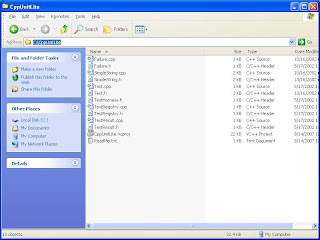
8. Using the Add->Existing Item... mechanism, add the header files (*.h) to the Header files section and add the source files (*.cpp) to the Source files section.

Image 6 - CppUnitLite project with all header and source files added

This walkthrough assumes that the code to be tested is in a static library (*.lib). In the example, Stack.h and Stack.cpp are in a static library project named Stack.

9. Add a new project to the solution and name it LibraryName.Tests. In the example, the project is named Stack.Tests.

10. Right-click on the project and choose properties. In the Common Properties->References section add the other two projects as references by using the Add New Reference button.

Image 7 - References added to the project properties.

11. In the Configuration Properties->C/C++->General section is an option named Additional Include Directories. Add the directories which contain the header files of the classes to be tested as well as the directory which contains the CppUnitLite header files. In the example, these two directories are ..\Stack and C:\CppUnitLite.

Image 8 - Additional Include Directories added to the project properties.

12. Add a .cpp file with a command line main method for Windows Mobile in it. This file should include TestHarness.h from CppUnitLite. In the main method, create a TestResult variable and pass it into TestRegistry::runAllTests as done in the StackMain.cpp example in Code Listing 3.

Code Listing 3 - StackMain.cpp

#include "TestHarness.h"
#include <windows.h>

int _tmain(int argc, _TCHAR* argv[])
{
TestResult tr;
TestRegistry::runAllTests(tr);

return 0;
}

13. Add a file named corresponding to the class to be tested. In the example, the Stack class is being tested, so the file is named StackTest.cpp. The code for this file is listed in Code Listing 4.

Code Listing 4 - StackTest.cpp

#include "TestHarness.h"
#include "Stack.h"
#include <string>

TEST( MultiPushPop, Stack )
{
Stack s(10);
s.Push(14);
LONGS_EQUAL(14, s.Pop());
s.Push(12);
s.Push(18);
s.Push(27);
LONGS_EQUAL(27, s.Pop());
s.Push(38);
s.Push(2);
s.Push(12);
LONGS_EQUAL(12, s.Pop());
LONGS_EQUAL( 2, s.Pop());
LONGS_EQUAL(38, s.Pop());
LONGS_EQUAL(18, s.Pop());
LONGS_EQUAL(12, s.Pop());
CHECK(s.IsEmpty());
}

TEST( PushExceedsMax, Stack )
{
Stack s(5);
s.Push(1);
s.Push(2);
s.Push(3);
s.Push(4);
s.Push(5);
try
{
s.Push(6);
FAIL("Push should have exceeded max stack size");
}
catch (std::exception ex)
{
// Expected behavior
}
}

TEST( PushPop, Stack )
{
Stack s(10);
s.Push(27000);
CHECK(!s.IsEmpty());
int value = s.Pop();
LONGS_EQUAL(27000, value);
CHECK(s.IsEmpty());
}

TEST( PopEmpty, Stack )
{
Stack s(10);
try
{
// This test should throw an exception
int value = s.Pop();
FAIL("Popping an empty stack should throw an exception");
}
catch (std::exception ex)
{
// Expected behavior
}
}

TEST( IsEmpty, Stack )
{
Stack s(10);
CHECK(s.IsEmpty());
}

TEST( Creation, Stack )
{
Stack s(10);
}

13. Set the .Tests project (Stack.Tests) as the startup project by right-clicking on the project and choosing Set as Startup Project.

14. Build all the projects.

15. Make sure to choose the same emulator or device for all three projects otherwise multiple emulator windows may pop up.

16. Run the project. Hopefully, a message stating "There were no test failures" is then displayed in the Output window as shown in Image 9.

Image 9 - Successful Test Run

Aside from the examples that come with CppUnitLite, there are additional examples within Working Effectively with Legacy Code.

Tuesday, July 24, 2007

AUTDv1 Text Messaging Impact

With Exchange 2003 and Windows Mobile 2003, Microsoft attempted to mitigate the wide-spread usage of RIM BlackBerry's push email service with a technology named Always Up-To-Date, or AUTD. This first version of AUTD worked by sending an SMS control message to the Windows Mobile 2003 phone whenever an event occurred within Exchange which modified a folder marked for synchronization. The Windows Mobile 2003 phone would then download the updates from Exchange.

For more background information, see Microsoft Technet: How to Configure Always Up-To-Date Notifications

Image1 shows a chart detailing my text message usage from August 2005 through July 2007. It is fairly obvious the period where my usage of AUTDv1 starts and ends.

Image1 - Text Message Usage Per Month

Wednesday, May 02, 2007

.NET CF Custom Control: RoundedGroupBox

The .NET Compact Framework provides an excellent abstracted interface to the Graphics Device Interface (GDI) subsystem in the same manner as the full .NET Framework. However, there are still quite a few drawing methods which are not part of the CF which if included would make the design of custom controls easier (and sometimes more fun). One of the methods missing from the Compact Framework is the RoundRect GDI function. According to MSDN, "This function draws a rectangle with rounded corners. The current pen outlines the rectangle and the current brush fills it."

In this entry, the RoundRect function is used to create a new custom control called a RoundedGroupBox. The standard GroupBox control exists on the full framework and provides a panel with a rounded outline and a title. It logically groups controls into a designated area of the screen. An image of the GroupBox from the full framework is displayed in Image 1. The Compact Framework does not contain a GroupBox control, so this custom control, RoundedGroupBox, serves as a stand-in with a little more flare.

Image 1 - GroupBox from the full .NET framework


To create the RoundedGroupBox using C# and the .NET Compact Framework, aside from the RoundRect GDI function, there are three other GDI functions which need to be P/Invoked:


  • CreateSolidBrush - This function is used to create colored brushes used to fill in the round rectangles.

  • SelectObject - This function is used to select a brush to use when drawing.

  • DeleteObject - This function deletes a drawing object and frees its associated memory.


A fourth function, GetStockObject is also contained within the source code but not used within this example. GDI contains some predefined pens, brushes and fonts. This function can retrieve any of those.


One very important point when P/Invoking these functions is that they need to be accessed at both design time and runtime. On Windows Mobile, these functions are all found in the coredll native assembly. Trying to use that assembly during design time is not going to work however, because Visual Studio will try to access a coredll.dll file on the local desktop. To work in the designer on the desktop, these functions need to be accessed in the gdi32 assembly found in the \Windows\System32 folder. A simple wrapper function has been written that checks the current environment and decides which version of the function to use -- gdi32 on the desktop and coredll on Windows Mobile. The source code for accessing these functions is listed in Code Listing 1. Image 2 shows the RoundedGroupBox control displayed in the Visual Studio designer.

Code Listing 1 - NativeMethods.cs


#region Using Directives

using System;
using System.Collections.Generic;
using System.Runtime.InteropServices;
using System.Text;

#endregion

namespace Rhinomobile.ControlLibrary
{
/// <summary>
/// Platform Invocation Methods
/// </summary>
class NativeMethods
{
#region Windows CE Methods

[DllImport("coredll", EntryPoint = "RoundRect")]
private static extern bool RoundRectCE(IntPtr hdc, int nLeftRect, int nTopRect,
int nRightRect, int nBottomRect, int nWidth, int nHeight);

[DllImport("coredll", EntryPoint = "CreateSolidBrush")]
private static extern IntPtr CreateSolidBrushCE(int crColor);

[DllImport("coredll", EntryPoint = "SelectObject")]
private static extern IntPtr SelectObjectCE(IntPtr hdc, IntPtr hgdiobj);

[DllImport("coredll", EntryPoint = "DeleteObject")]
private static extern bool DeleteObjectCE(IntPtr hObject);

[DllImport("coredll", EntryPoint = "GetStockObject")]
private static extern IntPtr GetStockObjectCE(int fnObject);

#endregion

#region Windows Methods

[DllImport("gdi32", EntryPoint = "RoundRect")]
private static extern bool RoundRectWin(IntPtr hdc, int nLeftRect, int nTopRect,
int nRightRect, int nBottomRect, int nWidth, int nHeight);

[DllImport("gdi32", EntryPoint = "CreateSolidBrush")]
private static extern IntPtr CreateSolidBrushWin(int crColor);

[DllImport("gdi32", EntryPoint = "SelectObject")]
private static extern IntPtr SelectObjectWin(IntPtr hdc, IntPtr hgdiobj);

[DllImport("gdi32", EntryPoint = "DeleteObject")]
private static extern bool DeleteObjectWin(IntPtr hObject);

[DllImport("gdi32", EntryPoint = "GetStockObject")]
private static extern IntPtr GetStockObjectWin(int fnObject);

#endregion

#region Platform Agnostic Methods

/// <summary>
/// This function draws a rectangle with rounded corners. The current pen outlines the
/// rectangle and the current brush fills it.
/// </summary>
/// <param name="hdc">Handle to the device context.</param>
/// <param name="nLeftRect">Specifies the x-coordinate of the upper left corner of
/// the rectangle.</param>
/// <param name="nTopRect">Specifies the y-coordinate of the upper left corner of
/// the rectangle.</param>
/// <param name="nRightRect">Specifies the x-coordinate of the lower right corner
/// of the rectangle.</param>
/// <param name="nBottomRect">Specifies the y-coordinate of the lower right corner
/// of the rectangle.</param>
/// <param name="nWidth">Specifies the width of the ellipse used to draw the
/// rounded corners.</param>
/// <param name="nHeight">Specifies the height of the ellipese used to draw the
/// rounded corners.</param>
/// <returns>
/// Nonzero indicates success. Zero indicates failure. To get extended
/// error information, call GetLastError.
/// </returns>
internal static bool RoundRect(IntPtr hdc, int nLeftRect, int nTopRect,
int nRightRect, int nBottomRect, int nWidth, int nHeight)
{
bool result = false;
if (Environment.OSVersion.Platform == PlatformID.WinCE)
{
result = RoundRectCE(hdc, nLeftRect, nTopRect, nRightRect,
nBottomRect, nWidth, nHeight);
}
else
{
result = RoundRectWin(hdc, nLeftRect, nTopRect, nRightRect,
nBottomRect, nWidth, nHeight);
}
return result;
}

/// <summary>
/// This function creates a logical brush that has the specified solid color.
/// </summary>
/// <param name="crColor">Specifies the color of the brush.</param>
/// <returns>
/// A handle that identifies a logical brush indicates success. NULL
/// indicates failure. To get extended error information, call GetLastError.
/// </returns>
internal static IntPtr CreateSolidBrush(int crColor)
{
IntPtr result = IntPtr.Zero;
if (Environment.OSVersion.Platform == PlatformID.WinCE)
{
result = CreateSolidBrushCE(crColor);
}
else
{
result = CreateSolidBrushWin(crColor);
}
return result;
}

/// <summary>
/// This function selects an object into a specified device context. The new object
/// replaces the previous object of the same type.
/// </summary>
/// <param name="hdc">Handle to the device context.</param>
/// <param name="hgdiobj">Handle to the object to be selected.</param>
/// <returns>
/// If the selected object is not a region, the handle of the object being
/// replaced indicates success.
/// </returns>
internal static IntPtr SelectObject(IntPtr hdc, IntPtr hgdiobj)
{
IntPtr result = IntPtr.Zero;
if (Environment.OSVersion.Platform == PlatformID.WinCE)
{
result = SelectObjectCE(hdc, hgdiobj);
}
else
{
result = SelectObjectWin(hdc, hgdiobj);
}
return result;
}

/// <summary>
/// This function deletes a logical pen, brush, font, bitmap, region, or palette,
/// freeing all system resources associated with the object. After the object is
/// deleted, the specified handle is no longer valid.
/// </summary>
/// <param name="hObject">Handle to a logical pen, brush, font, bitmap, region,
/// or palette.</param>
/// <returns>Nonzero indicates success.</returns>
internal static bool DeleteObject(IntPtr hObject)
{
bool result = false;
if (Environment.OSVersion.Platform == PlatformID.WinCE)
{
result = DeleteObjectCE(hObject);
}
else
{
result = DeleteObjectWin(hObject);
}
return result;
}

/// <summary>
/// This function retrieves a handle to one of the predefined stock pens,
/// brushes or fonts.
/// </summary>
/// <param name="fnObject">Specifies the type of stock object.</param>
/// <returns>If the function succeeds, the return value identifies the
/// logical object requested.</returns>
internal static IntPtr GetStockObject(int fnObject)
{
IntPtr result = IntPtr.Zero;
if (Environment.OSVersion.Platform == PlatformID.WinCE)
{
result = GetStockObjectCE(fnObject);
}
else
{
result = GetStockObjectWin(fnObject);
}
return result;
}

#endregion
}
}


Image 2 - RoundedGroupBox control displayed in the designer


By default, when a P/Invoke call is made inside a .NET CF custom control, the Visual Studio designer will not attempt to draw the control properly because it believes it cannot. The attribute which controls whether Visual Studio will attempt to draw the control or not is the DesktopCompatible attribute which is placed in the DesignTimeAttributes.xmta xml file. Code Listing 2 shows the DesignTimeAttributes.xmta file. Image 3 displays two versions of the control - one with the DesktopCompatible attribute set to true in the xmta file and the other without it.

Code Listing 2 - DesignTimeAttributes.xmta


<?xml version="1.0" encoding="utf-16"?>
<Classes xmlns="http://schemas.microsoft.com/VisualStudio/2004/03/SmartDevices/XMTA.xsd">
<Class Name="Rhinomobile.ControlLibrary.BorderPanel">
<DesktopCompatible>true</DesktopCompatible>
<Property Name="BorderColor">
<Category>Appearance</Category>
<Description>The color used to draw the border of the panel.</Description>
</Property>
<Property Name="BorderWidth">
<Category>Layout</Category>
<Description>The width of the panel border.</Description>
</Property>
</Class>
<Class Name="Rhinomobile.ControlLibrary.RoundedGroupBox">
<DesktopCompatible>true</DesktopCompatible>
<Property Name="OuterColor">
<Category>Appearance</Category>
<Description>The color user to fill the background of the title of the rounded group box.</Description>
</Property>
<Property Name="RoundedGroupBoxText">
<Category>Appearance</Category>
<Description>The text displayed in the title of the group box panel.</Description>
</Property>
</Class>
</Classes>


Image 3 - Two versions of RoundedGroupBox displayed - One with the DesktopCompatible attribute set to true in the DesignTimeAttributes.xmta file, the other without


The RoundedGroupBox control itself is comprised of two round rectangles drawn with different colored brushes. The top is slightly offset on the inner polygon which leaves an area for the title to be written. This control is derived from a standard .NET Compact Framework System.Windows.Forms.Panel, so out of the box it provides the logical grouping functionality inherent in a panel.

RoundedGroupBox provides two additional properties, OuterColor and RoundedGroupBoxText. OuterColor is the color used for the title area and the outline. The standard BackColor property is used for the area where controls are placed. RoundedGroupBoxText is a property which contains the text displayed in the title area.

RoundedGroupBox also overrides two inherited methods, OnPaintBackground and OnPaint. In OnPaintBackground, the background color of the parent control is used to fill the RoundedGroupBox control. Doing this fills in the gaps left by the rounded corners of the control so that seemingly the parent control is showing through. OnPaint is more complicated and a snippet of code is displayed inline below.


protected override void OnPaint(PaintEventArgs e)
{
int outerBrushColor = HelperMethods.ColorToWin32(m_outerColor);
int innerBrushColor = HelperMethods.ColorToWin32(this.BackColor);

IntPtr hdc = e.Graphics.GetHdc();
try
{
IntPtr hbrOuter = NativeMethods.CreateSolidBrush(outerBrushColor);
IntPtr hOldBrush = NativeMethods.SelectObject(hdc, hbrOuter);
NativeMethods.RoundRect(hdc, 0, 0, this.Width, this.Height, DIAMETER, DIAMETER);
IntPtr hbrInner = NativeMethods.CreateSolidBrush(innerBrushColor);
NativeMethods.SelectObject(hdc, hbrInner);
NativeMethods.RoundRect(hdc, 0, 18, this.Width, this.Height, DIAMETER, DIAMETER);
NativeMethods.SelectObject(hdc, hOldBrush);
NativeMethods.DeleteObject(hbrOuter);
NativeMethods.DeleteObject(hbrInner);
}
finally
{
e.Graphics.ReleaseHdc(hdc);
}

if (!string.IsNullOrEmpty(m_roundedGroupBoxText))
{
Font titleFont = new Font("Tahoma", 9.0F, FontStyle.Bold);
Brush titleBrush = new SolidBrush(this.BackColor);
try
{
e.Graphics.DrawString(m_roundedGroupBoxText, titleFont, titleBrush, 14.0F, 2.0F);
}
finally
{
titleFont.Dispose();
titleBrush.Dispose();
}
}

base.OnPaint(e);
}


The first two function calls are to the ColorToWin32 method. This method converts a System.Drawing.Color value into an integer used with Windows 32 functions. It is contained in the HelperMethods class. This class can be found in Code Listing 3.

Following the color conversions, a handle to the underlying GDI device context is retrieved using the GetHdc method. A solid brush of the outer color is then created using CreateSolidBrush. This brush is then selected using the SelectObject function. This is analagous to selecting a type of brush within a graphics program when drawing shapes. A handle to the previously selected brush is saved so that it can be the selected brush again when the control is finished drawing. The outer round rectangle is drawn with a call to the RoundRect function. The same steps are repeated for the inner round rectangle: creation, selection, and drawing. Both the outer and inner round rectangles are drawn using a constant value for nWidth and nHeight giving the control a circular corner. When both round rectangles have been drawn, the previously selected brush is set as the selected brush again. The two created brushes are then deleted. Finally, the handle to the device context is released. The remaining part of the OnPaint method is responsible for writing the title text in the space between the two round rectangles. The source code for RoundedGroupBox.cs is found in Code Listing 4. Image 4 shows a screenshot of a sample application which uses the RoundedGroupBox control to ask a question where a singular answer can be chosen.

Code Listing 3 - HelperMethods.cs


#region Using Directives

using System;
using System.Collections.Generic;
using System.Drawing;
using System.Text;

#endregion

namespace Rhinomobile.ControlLibrary
{
/// <summary>
/// Useful methods
/// </summary>
static class HelperMethods
{
/// <summary>
/// Converts a System.Drawing.Color value into a Windows 32 color value.
/// </summary>
/// <param name="color">System.Drawing.Color value</param>
/// <returns>Windows 32 integer representation of a color</returns>
public static int ColorToWin32(Color color)
{
return ((color.R | (color.G << 8)) | (color.B << 16));
}
}
}


Code Listing 4 - RoundedGroupBox.cs


#region Using Directives

using System;
using System.Collections.Generic;
using System.Drawing;
using System.Windows.Forms;
using System.Text;

#endregion

namespace Rhinomobile.ControlLibrary
{
/// <summary>
/// A group box panel with rounded corners and a title
/// </summary>
public class RoundedGroupBox : Panel
{
#region Constants

private const int DIAMETER = 32;

#endregion

#region Fields

private Color m_outerColor = SystemColors.ActiveCaption;
private string m_roundedGroupBoxText = string.Empty;

#endregion

#region Protected Methods

protected override void OnPaintBackground(PaintEventArgs e)
{
if (this.Parent != null)
{
SolidBrush backBrush = new SolidBrush(this.Parent.BackColor);
try
{
e.Graphics.FillRectangle(backBrush, 0, 0, this.Width, this.Height);
}
finally
{
backBrush.Dispose();
}
}
}

protected override void OnPaint(PaintEventArgs e)
{
int outerBrushColor = HelperMethods.ColorToWin32(m_outerColor);
int innerBrushColor = HelperMethods.ColorToWin32(this.BackColor);

IntPtr hdc = e.Graphics.GetHdc();
try
{
IntPtr hbrOuter = NativeMethods.CreateSolidBrush(outerBrushColor);
IntPtr hOldBrush = NativeMethods.SelectObject(hdc, hbrOuter);
NativeMethods.RoundRect(hdc, 0, 0, this.Width, this.Height, DIAMETER, DIAMETER);
IntPtr hbrInner = NativeMethods.CreateSolidBrush(innerBrushColor);
NativeMethods.SelectObject(hdc, hbrInner);
NativeMethods.RoundRect(hdc, 0, 18, this.Width, this.Height, DIAMETER, DIAMETER);
NativeMethods.SelectObject(hdc, hOldBrush);
NativeMethods.DeleteObject(hbrOuter);
NativeMethods.DeleteObject(hbrInner);
}
finally
{
e.Graphics.ReleaseHdc(hdc);
}

if (!string.IsNullOrEmpty(m_roundedGroupBoxText))
{
Font titleFont = new Font("Tahoma", 9.0F, FontStyle.Bold);
Brush titleBrush = new SolidBrush(this.BackColor);
try
{
e.Graphics.DrawString(m_roundedGroupBoxText, titleFont, titleBrush, 14.0F, 2.0F);
}
finally
{
titleFont.Dispose();
titleBrush.Dispose();
}
}

base.OnPaint(e);
}

#endregion

#region Properties

/// <summary>
/// The color user to fill the background of the title of the rounded group box.
/// </summary>
public Color OuterColor
{
get
{
return m_outerColor;
}
set
{
m_outerColor = value;
this.Invalidate();
}
}

/// <summary>
/// The text displayed in the title of the group box panel.
/// </summary>
public string RoundedGroupBoxText
{
get
{
return this.m_roundedGroupBoxText;
}
set
{
m_roundedGroupBoxText = value;
this.Invalidate();
}
}

#endregion
}
}


Image 4 - RoundedGroupBox example application

Friday, April 20, 2007

.NET CF Custom Control: BorderPanel

Creating custom controls using the .NET Compact Framework 2.0 and Visual Studio 2005 can be a tough chore at times, but sometimes it can also be very rewarding and time saving. This entry details how to create a .NET CF BorderPanel custom control. A BorderPanel is a type of Panel which contains a border of a specified color and width. This control is used in the Run Application at Time (and Time Change) post to separate different sections of the demonstration application into logical groupings.

Inside the Rhinomobile.ControlLibrary sample project, which is of type ControlLibrary, there are three files to note: BorderPanel.bmp, BorderPanel.cs, and DesignTimeAttributes.xmta. BorderPanel.bmp is the graphic which represents the BorderPanel when it is placed in the Toolbox. BorderPanel.cs is the source code for the BorderPanel custom control. DesignTimeAttributes.xmta is an xml file which contains information used by Visual Studio when using the control through the designer. The project layout including these three files is displayed in Image 1.

Image 1 - Solution Explorer Showing BorderPanel.bmp, BorderPanel.cs, and DesignTimeAttributes.xmta Files


BorderPanel.bmp is a 16 x 16 bitmap added to the project with the same base name as the custom control. The Build Action for this file should be set to "Embedded Resource". The BorderPanel.bmp file used in this project is displayed in Image 2.

Image 2 - BorderPanel.bmp Graphic


BorderPanel is a .NET Compact Framework 2.0 Custom Control which behaves exactly like a Panel yet has a border of a specified color and width. BorderPanel inherits from the standard System.Windows.Forms.Panel class. By doing so, BorderPanel automatically acts in the same fashion as a Panel. The only difference with a BorderPanel is how it is drawn.

Two fields are added to the BorderPanel class, one containing information about the border color and the other about the border width. Corresponding public properties are also added to the class. These are named appropriately enough BorderColor and BorderWidth. A call to Invalidate() is also added to the mutator (set) of the public properties. The Invalidate method with no parameters causes the entire control to be redrawn on the next painting. Changing the border color or changing the border width would both cause the visual look of the control to change and is why Invalidate is called.

The OnPaint method inherited from the Panel class is overridden to draw the custom control. A new Pen object is instantiated, used to draw the border, and then disposed. It is of extreme importance to dispose of GDI objects as soon as they are finished being used on a mobile device as they are a major source of memory issues. The width of the Pen is set to the BorderWidth property and the color is set to BorderColor.

Calculating where to draw the border though is an interesting issue. The drawing is covered in these two lines:


int halfWidth = m_borderWidth / 2;
e.Graphics.DrawRectangle(borderPen, halfWidth, halfWidth,
this.Width - m_borderWidth, this.Height - m_borderWidth);


The halfWidth variable is used due to the alignment of the Pen object. Pen.Alignment is not a property that is supported on the .NET Compact Framework. The alignment of the Pen is therefore set to center, meaning that if the width of the pen is 10 pixels, 5 are going to be drawn on one side of the pen and 5 on the other. For this reason, half the width (halfWidth) of the Pen is calculated and used as the starting x,y coordinate for the drawing of the border. This ensures that the entire border is drawn on the viewable area. The third and fourth parameters to the DrawRectangle method are a width and height of the rectangle which is the reason the entire width and entire height of the border are subtracted from these values respectively.

The final item in OnPaint is a call to base.OnPaint(e) to ensure that other items are properly drawn. The source code for the BorderPanel is shown in Code Listing 1.

Code Listing 1 - BorderPanel.cs


#region Using Directives

using System;
using System.Collections.Generic;
using System.ComponentModel;
using System.Drawing;
using System.Data;
using System.Text;
using System.Windows.Forms;

#endregion

namespace Rhinomobile.ControlLibrary
{
/// <summary>
/// A Panel with a colored sizable border
/// </summary>
public class BorderPanel : Panel
{
#region Fields

private Color m_borderColor = SystemColors.Control;
private int m_borderWidth = 4;

#endregion

#region Constructor

/// <summary>
/// BorderPanel Constructor
/// </summary>
public BorderPanel() : base()
{
}

#endregion

#region Protected Methods

protected override void OnPaint(PaintEventArgs e)
{
if ((m_borderWidth > 0) && (m_borderWidth < (this.Width / 2)))
{
Pen borderPen = new Pen(m_borderColor, (float)m_borderWidth);
try
{
int halfWidth = m_borderWidth / 2;
e.Graphics.DrawRectangle(borderPen, halfWidth, halfWidth,
this.Width - m_borderWidth, this.Height - m_borderWidth);
}
finally
{
borderPen.Dispose();
}
}
base.OnPaint(e);
}

#endregion

#region Properties

/// <summary>
/// Color used for drawing border on panel
/// </summary>
public Color BorderColor
{
get
{
return m_borderColor;
}
set
{
m_borderColor = value;
this.Invalidate();
}
}

/// <summary>
/// Width of border on panel
/// </summary>
public int BorderWidth
{
get
{
return m_borderWidth;
}
set
{
m_borderWidth = value;
this.Invalidate();
}
}

#endregion
}
}


DesignTimeAttributes.xmta is an xml file which contains information about classes, properties, methods, and events used by Visual Studio at design time for controls. The xmta file for the BorderPanel custom control, demonstrates how to add descriptions for added properties as well as placing the properties within the proper categories in the Properties Window.

Working with the DesignTimeAttributes.xmta file can be one of the flakiest and time consuming tasks when working with the .NET Compact Framework. The one for this control has been simplified to only show the simplest two elements. The DesignTimeAttributes.xmta file can be found in Code Listing 2.

Code Listing 2 - DesignTimeAttributes.xmta


<?xml version="1.0" encoding="utf-16"?>
<Classes xmlns="http://schemas.microsoft.com/VisualStudio/2004/03/SmartDevices/XMTA.xsd">
<Class Name="Rhinomobile.ControlLibrary.BorderPanel">
<Property Name="BorderColor">
<Category>Appearance</Category>
<Description>The color used to draw the border of the panel.</Description>
</Property>
<Property Name="BorderWidth">
<Category>Layout</Category>
<Description>The width of the panel border.</Description>
</Property>
</Class>
</Classes>


At this point the project can be compiled and the control library built. The following images indicate how to go about adding the BorderPanel to the Toolbox within Visual Studio.

Image 3 - Toolbox Before Adding BorderPanel


Right click on the Toolbox and select "Choose Items..."

Image 4 - Choose Toolbox Items Dialog Before Adding BorderPanel


Click the "Browse" button on the Choose Toolbox Items Dialog.

Image 5 - Choose Toolbox Items Browse Dialog


Navigate to the location of the control library assembly and select it.

Image 6 - Choose Toolbox Items After Adding BorderPanel


Notice the controls in the assembly have been added to the list of components and checked. Click the "Ok" button on the dialog and the controls should be added to the Toolbox.

Image 7 - Toolbox After Adding BorderPanel


Image 8 - Form1.cs Design After Dragging Over a BorderPanel from the Toolbox


Image 9 - Properties Window Showing the BorderColor and BorderWidth Properties

Friday, March 30, 2007

Run Application at Time (and Time Change)

MSDN describes CeRunAppAtTime as a function which "prompts the system to start running a specified application at a specified time." This function can be extremely useful for performing scheduled tasks such as snapshots of running processes, the retrieval of device memory statistics, routine checks on security settings, or automatic device synchronization. Conversely, it can also be used to rescind the scheduling of these activities.

The CeRunAppAtTime function takes two parameters: TCHAR* pwszAppName, and SYSTEMTIME* lpTime. The first parameter, pwszAppName, is the name of the application to be run (e.g. \windows\cgacutil.exe). The type of the parameter is a pointer to a TCHAR. One might ask, "What's a TCHAR?" Well, according to MSDN, a TCHAR is a "Win32 character string that can be used to describe ANSI, DBCS, or Unicode strings. [...] For Unicode platforms, TCHAR is defined as synonymous with the WCHAR type." With Windows CE being a Unicode platform, this makes a TCHAR a WCHAR (wide character). Further demonstrating this is that the name of the actual first parameter - pwszAppName, translates into Pointer to a Wide String terminated with a Zero (null character) when broken down. Because the parameter is an input parameter, a standard C# string can be passed in as an equivalent in a P/Invoke function call.

The second parameter, lpTime, is the time at which the specified application should be run. A simple C# type though won't suffice for lpTime (Long Pointer to a time variable). This parameter requires a little bit more work. SYSTEMTIME is a structure composed of WORD representations of 8 items: year, month, day, day of week, hours, minutes, seconds, and milliseconds. A WORD is equivalent to a C# short, i.e. 2 bytes, putting the size of the structure at 16 bytes. A C# equivalent has been provided in Code Listing 1.

Additionally, it is the second parameter which also controls whether CeRunAppAtTime rescinds the scheduling of an application. This is done by passing in a null parameter for lpTime. One note on cancelling an application though is that CeRunAppAtTime will return false if the application specified was not already currently specified, so do not interpret this as the function only failing to remove a scheduled instance.

In the example below, because SYSTEMTIME (represented in C# as SystemTime) is a structure, two P/Invoke calls have been defined (see NativeTimeMethods.cs). The one which takes an array of bytes as the lpTime parameter is the one which can have a null value sent into it (see TimeUtilities.cs). The other one should be used for standard scheduling of applications.

An interesting point requiring further discussion is what happens when the time on the device is changed. The device time could be changed by the user or by a time negotiation on synchronization, or via an NTP (Network Time Protocol) server.

Images 1 through 5 show what happens when the current time on a device (March 28th, 2007) is changed to a future time (March 30th, 2007) to the point where applications would be scheduled to run in the past (March 29th, 2007). Windows CE ends up running those scheduled applications immediately. This is demonstrated within the screenshots of the sample application.

Image 1 - First "Set Date" button tapped. Date changed to March 28th, 2007


Image 2 - Right soft key button tapped. Application soft key menu displayed


Image 3 - Run App menu option selected. Application is run now.


Image 4 - "Set App" button tapped. Application set to run on March 29th, 2007


Image 5 - Second "Set Date" button tapped. Date changed to March 30th, 2007


With the time now changed to March 30th, 2007, the application which was scheduled to run on March 29th, 2007 is now run immediately.

Code Listing 1 - SystemTime.cs


#region Using Directives

using System;
using System.Collections.Generic;
using System.Runtime.InteropServices;
using System.Text;

#endregion

namespace Rhinomobile.ClassLibrary
{
/// <summary>
/// This structure represents a date and time using individual members for the month,
/// day, year, weekday, hour, minute, second, and millisecond.
/// </summary>
[StructLayout(LayoutKind.Sequential)]
public struct SystemTime
{
#region Fields

private short m_year;
private short m_month;
private short m_dayOfWeek;
private short m_day;
private short m_hour;
private short m_minute;
private short m_second;
private short m_milliseconds;

#endregion

#region Constructors

public SystemTime(DateTime value)
: this()
{
ConvertFromDateTime(value);
}

#endregion

#region Properties

/// <summary>
/// Specifies the current year
/// </summary>
public short Year
{
get { return m_year; }
}

/// <summary>
/// Specifies the current month
/// January = 1 ... December = 12
/// </summary>
public short Month
{
get { return m_month; }
}

/// <summary>
/// Specifies the current day of the week
/// Sunday = 0 ... Saturday = 6
/// </summary>
public short DayOfWeek
{
get { return m_dayOfWeek; }
}

/// <summary>
/// Specifies the current day of the month
/// </summary>
public short Day
{
get { return m_day; }
}

/// <summary>
/// Specifies the current hour
/// </summary>
public short Hour
{
get { return m_hour; }
}

/// <summary>
/// Specifies the current minute
/// </summary>
public short Minute
{
get { return m_minute; }
}

/// <summary>
/// Specifies the current second
/// </summary>
public short Second
{
get { return m_minute; }
}

/// <summary>
/// Specifies the current millisecond
/// </summary>
public short Milliseconds
{
get { return m_milliseconds; }
}

public DateTime DateTime
{
get { return ConvertToDateTime(); }
set { ConvertFromDateTime(value); }
}

/// <summary>
/// Gets the day of the year represented by this instance.
/// </summary>
public int DayOfYear
{
get { return DateTime.DayOfYear; }
}

/// <summary>
/// Gets the number of ticks that represent the date and time of this instance.
/// </summary>
public long Ticks
{
get { return DateTime.Ticks; }
}

/// <summary>
/// Gets the time of day for this instance.
/// </summary>
public TimeSpan TimeOfDay
{
get { return DateTime.TimeOfDay; }
}

#endregion

#region Private Methods

private void ConvertFromDateTime(DateTime value)
{
m_year = (short)value.Year;
m_month = (short)value.Month;
m_dayOfWeek = (short)value.DayOfWeek;
m_day = (short)value.Day;
m_hour = (short)value.Hour;
m_minute = (short)value.Minute;
m_second = (short)value.Second;
m_milliseconds = (short)value.Millisecond;
}

private DateTime ConvertToDateTime()
{
return new DateTime(m_year, m_month, m_day, m_hour, m_minute, m_second);
}

#endregion
}
}


Code Listing 2 - NativeTimeMethods.cs


#region Using Directives

using System;
using System.Collections.Generic;
using System.Runtime.InteropServices;
using System.Text;

#endregion

namespace Rhinomobile.ClassLibrary
{
/// <summary>
/// P/Invoked time related methods.
/// </summary>
static class NativeTimeMethods
{
#region Internal Static Methods

/// <summary>
/// This function sets the current local time and date.
/// </summary>
/// <param name="lpSystemTime">A pointer to a SystemTime structure that contains
/// the new local date and time. The DayOfWeek member of the SystemTime structure
/// is ignored.</param>
/// <returns>Nonzero indicates success. Zero indicates failure.</returns>
[DllImport("coredll")]
internal static extern bool SetLocalTime(ref SystemTime lpSystemTime);

/// <summary>
/// This function prompts the system to start running a specified application at
/// a specified time.
/// </summary>
/// <param name="pwszAppName">Pointer to a null-terminated string that specifies
/// the name of the application to be run.</param>
/// <param name="lpTime">Long pointer to a SystemTime structure that specifies
/// the time when the given application is to be run. If this parameter is NULL,
/// the existing run request is deleted and no new request is entered. The
/// deleted run request must have been initiated by a call to CeRunAppAtTime.</param>
/// <returns>TRUE indicates success. FALSE indicates failure.</returns>
[DllImport("coredll")]
internal static extern bool CeRunAppAtTime(string pwszAppName, ref SystemTime lpTime);

/// <summary>
/// This function prompts the system to start running a specified application at
/// a specified time.
/// </summary>
/// <param name="pwszAppName">Pointer to a null-terminated string that specifies
/// the name of the application to be run.</param>
/// <param name="lpTime">Long pointer to a SystemTime structure that specifies
/// the time when the given application is to be run. If this parameter is NULL,
/// the existing run request is deleted and no new request is entered. The
/// deleted run request must have been initiated by a call to CeRunAppAtTime.</param>
/// <returns>TRUE indicates success. FALSE indicates failure.</returns>
[DllImport("coredll")]
internal static extern bool CeRunAppAtTime(string pwszAppName, byte[] lpTime);

#endregion
}
}


Code Listing 3 - TimeException.cs


#region Using Directives

using System;
using System.Collections.Generic;
using System.Text;

#endregion

namespace Rhinomobile.ClassLibrary
{
/// <summary>
/// Represents errors that occur during time methods
/// </summary>
public class TimeException : Exception
{
#region Constructors

/// <summary>
/// Initializes a new instance of the TimeException class.
/// </summary>
public TimeException()
: base()
{
}

/// <summary>
/// Initializes a new instance of the TimeException class with a specified error message.
/// </summary>
/// <param name="message">The message that describes the error.</param>
public TimeException(string message)
: base(message)
{
}

/// <summary>
/// Initializes a new instance of the TimeException class with a specified error
/// message and a reference to the inner exception that is the cause of the exception.
/// </summary>
/// <param name="message">The message that describes the error.</param>
/// <param name="innerException">The exception that is
/// the cause of the current exception.</param>
public TimeException(string message, Exception innerException)
: base(message, innerException)
{
}

#endregion
}
}


Code Listing 4 - TimeUtilities.cs


#region Using Directives

using System;
using System.Collections.Generic;
using System.Runtime.InteropServices;
using System.Text;

#endregion

namespace Rhinomobile.ClassLibrary
{
/// <summary>
/// Methods for performing time based functions
/// </summary>
public static class TimeUtilities
{
#region Static Public Methods

/// <summary>
/// This function sets the current local date and time.
/// </summary>
/// <param name="value">The local date and time to set on the device.</param>
/// <returns>True if date and time are successfully set</returns>
public static bool SetLocalDeviceTime(DateTime value)
{
SystemTime systemTime = new SystemTime(value);
bool result = NativeTimeMethods.SetLocalTime(ref systemTime);
if (!result)
{
int errorCode = Marshal.GetLastWin32Error();
throw new TimeException(StandardConstants.ERROR_CODE + errorCode.ToString());
}
return result;
}

/// <summary>
/// This function prompts the system to start running a specified application
/// at a specified time.
/// </summary>
/// <param name="application">The name of the application to be run</param>
/// <param name="value">The date and time when the given application is to be run</param>
/// <returns>True if the application is properly scheduled</returns>
public static bool RunApplication(string application, DateTime value)
{
SystemTime systemTime = new SystemTime(value);
bool result = NativeTimeMethods.CeRunAppAtTime(application, ref systemTime);
if (!result)
{
int errorCode = Marshal.GetLastWin32Error();
throw new TimeException(StandardConstants.ERROR_CODE + errorCode.ToString());
}
return result;
}

/// <summary>
/// This method deletes an existing run application request
/// </summary>
/// <param name="application">Application which has been requested to run</param>
/// <returns>True if application is found and request is removed</returns>
public static bool CancelRunApplication(string application)
{
return NativeTimeMethods.CeRunAppAtTime(application, null);
}

#endregion
}
}

Friday, March 16, 2007

Quick Hitter: Navigating Windows Folder via ActiveSync

Annoyed because the \Windows folder can't be viewed when trying to "Explore" a Windows Mobile device using Microsoft ActiveSync? Well, actually it can. Where the setting to change that behavior is though is fairly counterintuitive. In order to be able to see the \Windows folder on a Windows Mobile device, the Windows Explorer folder options of the machine ActiveSync is running on are what need to be changed.

Image 1 - \Windows folder not visible through ActiveSync


On the window displayed in Image 1, from the main menu select Tools-->Folder Options. Switch from the General tab to the View tab located at the top of the Folder Options dialog window. In the "Advanced Settings" area, there will be an option under "Files and Folders" named "Hidden files and folders".

Image 2 - Folder Options dialog with Hidden files and folders highlighted


Change the "Hidden files and folders" value from "Do not show hidden files and folders" to "Show hidden files and folders". Click the "Apply" button and then click the "OK" button to close the dialog window. The explorer window should now display and allow access to the \Windows folder.

Image 3 - \Windows folder visible through ActiveSync

Tuesday, March 06, 2007

Samsung IP-830W Errors

With increasing frequency, I have started to receive some disturbing error messages from my Samsung IP-830w. I thought this would be a good forum to try to keep track of them. This entry will be updated from time to time with new messages I receive. It is not my intent to disparage the name of Sprint nor Samsung, just to point out the interesting messages displayed by this phone.


  • March 06, 2007 -- CDMAdsatcmdp.c 806 Out of memory DS

  • April 03, 2007 -- CDMAhdrutil.c 1048 Failed write item to NV HDRMC

  • May 29, 2007 -- (This is not an error message, but a phone defect.) I changed the phone from ring mode to vibrate mode and left it alone. When I received a new message, the phone started vibrating and would not stop. Switching the phone back to ring mode, playing with settings, sliding the phone open and closed, and even turning the cellular radio on and off would not turn the vibrating off. Pulling down the little switch to turn the screen off did momentarily stop the vibrating. (It resumed immediately when turning the screen back on.) The only way to resolve the issue was to soft reset the phone.

Sunday, February 25, 2007

Quick Hitter: Securing the Run Dialog

The Windows Mobile taskbar provides users with an ability to run any particular program via the Run dialog. The Run dialog is accessed by pressing the action key (the center button of the directional pad) and tapping and holding (right-clicking) on the clock.

Image 1 - The Run Dialog menu


When writing line of business software which should be the only application the user should run on the device however, it may be necessary to disable the Run dialog as a security precaution. Disabling the Run dialog makes it more difficult for users to bypass the desired functionality. Access to the Run dialog can be disabled by setting a value within the HKEY_LOCAL_MACHINE\Security\Policies\Shell registry key. Inside that key, a value named NoRunDlg needs to be set as a DWORD with a value of 1.

Image 2 - Remote Registry Editor showing NoRunDlg value


Once the NoRunDlg value has been set, the menu showing Run and Clock is still accessible. However, the Run menu option is now disabled (indicated by it being grayed out) preventing users from running applications via that option.

Image 3 - Run Dialog option grayed out

Thursday, February 22, 2007

Mobile Spy

Many Windows and Windows Mobile developers have at one time used the Microsoft Spy++ or the Microsoft CE Remote Spy tools. The Microsoft Spy++ tool allows a developer to view properties of selected windows, threads, processes, or messages using a graphical tree. Remote Spy displays a list of the windows that are open on a particular device that is connected. In addition to the list of windows, Remote Spy also provides the capability to view properties of a window such as the class, style, extended style, window procedure address, window positioning, and client area window positioning as well as the messages within the message queue for a selected window.

Image 1 - Microsoft CE Remote Spy


Remote Spy is an excellent application which is extremely useful for any mobile developer. What happens though if an individual wants to see the listing of top-level windows currently running on a device and does not have the ability to connect the device to another machine where Remote Spy can be run? Here's a simple application that performs that functionality.

Image 2 - Mobile Spy


This application (which has been named Mobile Spy just to differentiate) shows a listing of all the top level windows running on a device at a particular moment in time. Along side the window handle of the top-level window, Mobile Spy also displays the Window Text, and the Class Name of the class to which a window belongs.

This application uses three P/Invoked methods to retrieve the window handles, the window text, and the window class names:


  • GetWindow - This function retrieves the handle to a window that has the specified relationship to the specified window.

  • GetWindowText - This function copies the text of the specified windows title bar—if it has one—into a buffer. If the specified window is a control, the text of the control is copied.

  • GetClassName - This function retrieves the name of the class to which the specified window belongs.


(Source for all above descriptions comes directly from MSDN)

The application contains a simple button and a simple list view with three columns. The "Refresh" button loads the windows in at a specific point in time. Here is code of the method associated with the click event of the "Refresh" button as well as an associated explanation:

lvWindows.BeginUpdate();
lvWindows.Items.Clear();
IntPtr window = GetWindow(this.Handle, GW_HWNDFIRST);
StringBuilder className = new StringBuilder(MAX_LENGTH);
StringBuilder windowText = new StringBuilder(MAX_LENGTH);
while (window != IntPtr.Zero)
{
int classNameCount = GetClassName(window, className, MAX_LENGTH);
int windowTextCount = GetWindowText(window, windowText, MAX_LENGTH);
string windowTextDisplay = NO_NAME;
if (windowTextCount > 0)
{
windowTextDisplay = windowText.ToString();
}
string hexWindow = String.Format("{0:X2}", window.ToInt32());
ListViewItem item = new ListViewItem(new string[] { hexWindow,
windowTextDisplay, className.ToString() });
lvWindows.Items.Add(item);
window = GetWindow(window, GW_HWNDNEXT);
}
lvWindows.EndUpdate();


The method begins with a call to lvWindows.BeginUpdate() and lvWindows.Items.Clear(). lvWindows is the name of the ListView where the information is displayed. Calling BeginUpdate prevents the control from redrawing until EndUpdate is called. The next call is made to clear the items from the list view. Be cognizant of the difference between calling lvWindows.Clear() and lvWindows.Items.Clear().

The next line is where it starts to get interesting with a call to GetWindow using the window handle of the Mobile Spy application and GW_HWNDFIRST (defined as 0). Using the GW_HWNDFIRST constant retrieves the handle of the window highest in the Z-order. Because GetWindow is passed a top-level window, it retrieves the topmost window in the Z-order.

The application then sets up a while loop and iterates as long as the returned window handle is not zero. If the window handle is not zero, the application retrieves the Class Name and the WindowText using a StringBuilder for each call respectively. The return value of both the GetClassName and GetWindowText functions are the count of characters copied into the StringBuilder passed in. If the window text returned is a length of zero, "<No name>" is used for display purposes (just as in Remote Spy).

A list view item is setup using the window handle, the window text, and the class name. The window handle is slightly modified to be displayed in its hexadecimal notation (just as in Remote Spy). The window text is displayed as explained above and the class name is displayed as returned by the GetClassName function. The list view item is added to the list view.

When the application is done processing for a particular window handle, it attempts to retrieve the next window handle. The next window handle within the Z-order is retrieved via a call to GetWindow using the current window handle and GW_HWNDNEXT (defined as 2). GW_HWNDNEXT retrieves the window below the specified window in the Z-order. If this window handle retrieved is zero, the loop will exit on the next iteration. If this window handle is non-zero, the inner section of the loop will retrieve the window text and the class name and add the information to the list view.
Finally the list view is allowed to resume drawing because of the EndUpdate() method call.

Sunday, November 26, 2006

Samsung IP-830W Initial Thoughts

Due to the current project I am staffed on for work, I am unable to have a cellphone with a camera within the building. Being a Sprint customer for the last 7 years or so and not having much desire to switch carriers, this left me with very few options for phones. Recently, Sprint finally came out with a Windows Mobile 5 phone without a camera - the Samsung IP-830W. The IP-830W is a dual CDMA/GSM phone (although the GSM portion is only usable with overseas frequencies). I've had the IP-830W for about two weeks now, so here are my initial thoughts.

The Good:


  • Windows Mobile 5.0 - Being a mobile developer, it's great to finally have a Windows Mobile 5.0 phone.

  • EV-DO - Major +++ - While stuck late one Monday at work, I was able to nicely stream the Giants on Monday Night Football using Orb.

  • No Camera - I have always found cellphone cameras to be completely worthless and think it's a bad idea that Microsoft made them be standard on Smartphones.

  • Slide Down Keyboard - I also can't stand keyboards that slide out to the slide, which is the reason I never bought a PPC 6700. I have found myself using the keyboard more than I thought I would.

  • Regular and Extended Battery - Included in the box is an extended battery in addition to a standard battery.

  • Easy Speed Dial Buttons - One of my major gripes with the PPC 6600/6601 was that if the particular number button was not held down perfectly, the speed dial would not activate. The IP-830W is great on this front.


The Bad:

  • Not Mini-USB - Just great, another cable to carry around in my bag.

  • On/off Button - I'm not liking the slider on/off button, although this is only a slight negative.

  • Stick up antenna - It's just annoying to have a phone with an antenna again.


The Ugly:

  • Unreliable Push Email - I've had problems with the push email constantly updating. I feel like it synchronizes when it feels like. Using AUTD with my PPC 6600 and 6601, this was never an issue.


Previous Windows Mobile Phones:
Hitachi G1000
Audiovox PPC 6600
Audiovox PPC 6601 (Bought when I needed to ditch the phone with the camera)

Here's a comparison photo of my current and previous Windows Mobile phones.
(From left to right: Hitachi G1000, Audiovox PPC 6601, Samsung IP-830W)